Uncertainty Visualizations
This page showcases examples of plots specifically designed for exploring, diagnosing, and communicating aspects of predictive uncertainty using k-diagram.
Note
You need to run the code snippets locally to generate the plot
images referenced below (e.g., ../images/gallery_actual_vs_predicted.png).
Ensure the image paths in the .. image:: directives match where
you save the plots (likely an images subdirectory relative to
this file, e.g., ../images/).
Actual vs. Predicted
The plot_actual_vs_predicted() function
is the foundational tool for forecast evaluation. It creates a direct,
point-by-point comparison of observed outcomes against a model’s central
prediction, providing an immediate and intuitive assessment of accuracy
and bias.
Before diving into complex diagnostics, it is essential to master the anatomy of this plot.
Plot Anatomy
Angle (θ): Represents the sample’s position in the dataset, arranged sequentially around the circle. If a
theta_colis provided in a future version, it could represent an explicit ordering variable like time or a spatial coordinate.Radius (r): Directly corresponds to the magnitude of the value. Both the
actual_colandpred_colare plotted on this axis, allowing for a direct comparison of their magnitudes at each angular position.Azimuth: The azimuth (the circular path at a constant radius) does not represent a specific metric itself, but tracing it helps in comparing how predictions and actuals change relative to each other across the dataset.
Now, let’s explore how to apply this plot to a real-world scenario, progressing from a basic check to a more advanced, customized visualization.
Use Case 1: A Basic “Sanity Check”
The most fundamental use of this plot is as a “sanity check” for a single model. After training, you need an immediate visual answer to the question: “Is my model’s forecast even in the right ballpark?” By plotting the predictions as points against the true values, we can get a quick, high-level sense of the model’s performance.
 1import kdiagram as kd
 2import pandas as pd
 3import numpy as np
 4import matplotlib.pyplot as plt
 5
 6# --- 1. Data Generation ---
 7# Simulate a cyclical signal (e.g., seasonal sales) with some noise
 8np.random.seed(66)
 9n_points = 120
10signal = 20 + 15 * np.cos(np.linspace(0, 6 * np.pi, n_points))
11df_basic = pd.DataFrame({
12    'actual_sales': signal + np.random.randn(n_points) * 3,
13    'predicted_sales': signal * 0.9 + np.random.randn(n_points) * 2 + 2
14})
15
16# --- 2. Plotting with Dots ---
17kd.plot_actual_vs_predicted(
18    df=df_basic,
19    actual_col='actual_sales',
20    pred_col='predicted_sales',
21    title='Use Case 1: Basic Sanity Check (Dots)',
22    line=False, # Use dots for a point-by-point view
23    r_label="Sales Volume",
24    actual_props={'s': 30, 'alpha': 0.8, 'color':'black'},
25    pred_props={'s': 40, 'marker': 'x', 'alpha': 0.8, 'color':'#E53E3E'}, # Red 'x'
26    savefig="gallery/images/gallery_avp_basic.png"
27)
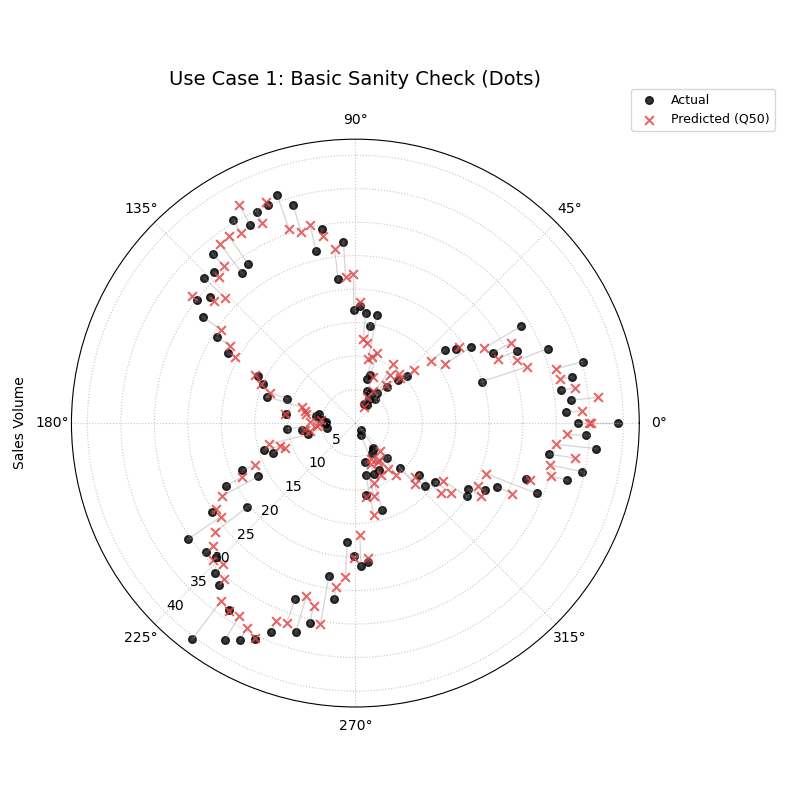
A point-by-point comparison where black dots represent actual sales and red crosses represent the model’s predictions.
Use Case 2: Comparing Competing Models with Lines
A more advanced and common task is to compare the performance of two or more competing models. By plotting their predictions as continuous lines, we can better visualize and contrast their tracking behavior and systemic biases.
Let’s imagine we have our original model (“Biased Model”) and a new, improved model (“Tracking Model”). We want to see if the new model corrects the under-prediction bias we suspected in the first use case.
 1# --- 1. Add a second model's prediction to our DataFrame ---
 2# (Assumes df_basic from the previous step is available)
 3df_multi = df_basic.copy()
 4df_multi['tracking_model'] = df_multi['actual_sales'] + np.random.normal(0, 1.5, n_points)
 5df_multi.rename(columns={'predicted_sales': 'biased_model'}, inplace=True)
 6
 7# --- 2. Plotting with Lines for Comparison ---
 8# Note: This function is designed for one prediction column. To compare
 9# multiple, we would typically call it multiple times on the same axes
10# or use a different plot. For this example, we will create two separate plots.
11# (This is a good place to show how to use the function twice if needed)
12
13fig, (ax1, ax2) = plt.subplots(1, 2, figsize=(16, 8),
14                             subplot_kw={'projection': 'polar'})
15
16# after creating ax1, ax2, let extend re-position r default
17for a in (ax1, ax2):
18    a.set_ylabel(None)
19    a.set_rlabel_position(225)
20
21# Plot for the Biased Model
22kd.plot_actual_vs_predicted(
23    df=df_multi,
24    actual_col='actual_sales',
25    pred_col='biased_model',
26    title='Biased Model Performance',
27    show_legend=False,
28    ax= ax1
29)
30ax1.set_ylabel("Sales Volume", labelpad=32)
31
32# Plot for the Tracking Model
33ax2 = kd.plot_actual_vs_predicted(
34    df=df_multi,
35    actual_col='actual_sales',
36    pred_col='tracking_model',
37    title='Improved Tracking Model Performance',
38    pred_props={'color': '#38A169'}, # Green for the good model
39    ax= ax2
40)
41ax2.set_ylabel("Sales Volume", labelpad=32)
42
43fig.suptitle('Use Case 2: Comparing Competing Models', fontsize=16)
44kd.savefig("gallery/images/gallery_avp_multi.png")
45plt.close(fig)
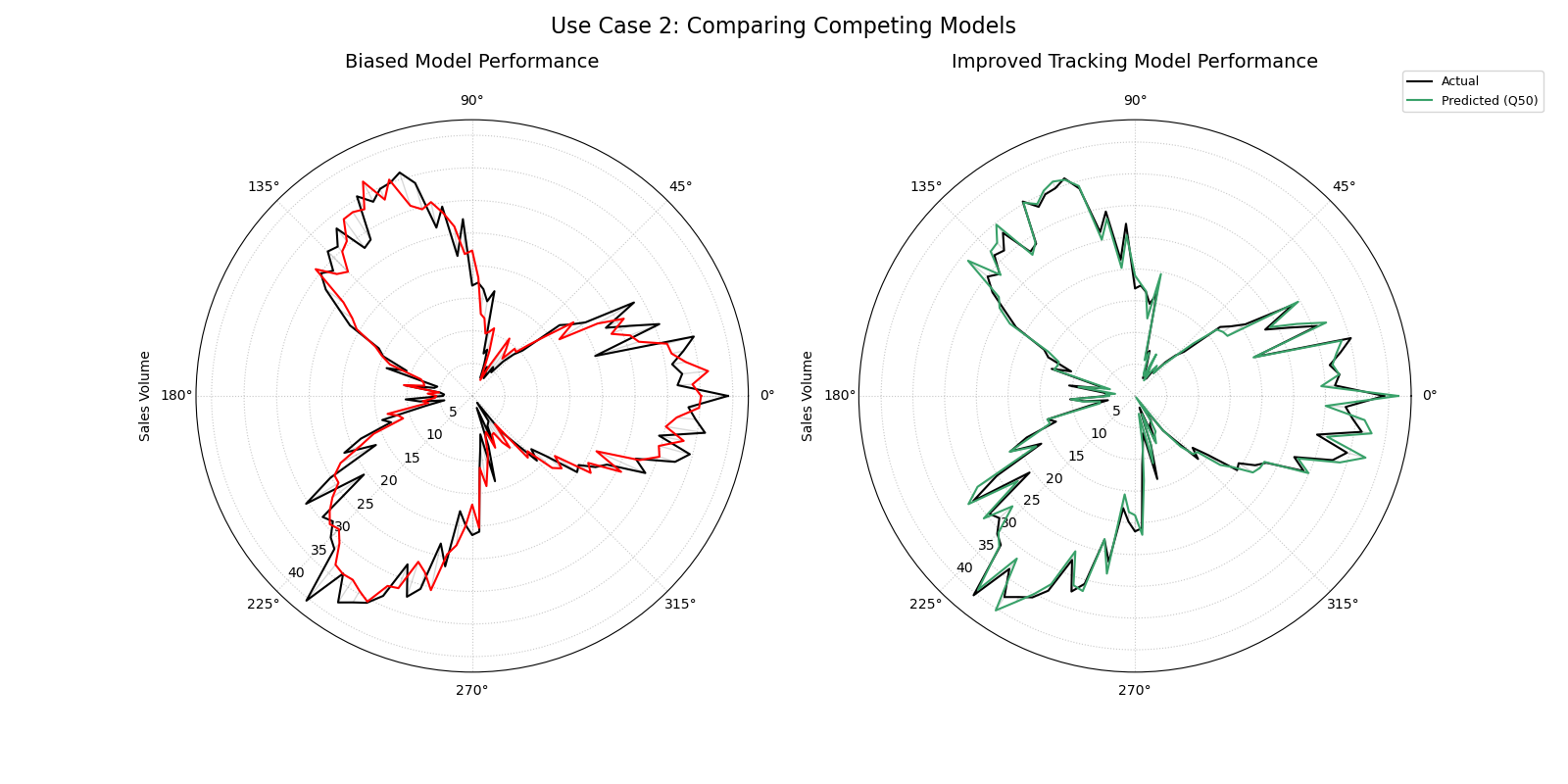
Side-by-side comparison. The left plot shows a biased model with a prediction line that does not fully match the actuals. The right plot shows an improved model where the lines overlap almost perfectly.
Use Case 3: Focused Analysis with Custom Styling
Sometimes, you need to create a presentation-ready plot that focuses
on a specific segment of your data, such as a critical business season.
By using the acov (angular coverage) parameter and customizing the
plot properties, we can create a more targeted and visually polished
diagnostic.
Let’s focus on the first half of our sales cycle using a half-circle layout to make the details easier to see.
 1# --- 1. Use the multi-model DataFrame from the previous step ---
 2# (Assumes df_multi is available, i.e from the previous step)
 3
 4# --- 2. Create a focused and styled plot ---
 5kd.plot_actual_vs_predicted(
 6    df=df_multi.head(60), # Focus on the first half of the cycle
 7    actual_col='actual_sales',
 8    pred_col='tracking_model',
 9    acov='half_circle', # Use a 180-degree layout
10    title='Use Case 3: Focused Analysis (First 60 Samples)',
11    r_label="Sales Volume",
12    actual_props={'color': '#2D3748', 'linewidth': 2.5, 'label': 'Actual Sales'},
13    pred_props={'color': '#38A169', 'linewidth': 2.5, 'linestyle': '--', 'label': 'Forecast'},
14    savefig="gallery/images/gallery_avp_focused.png"
15)
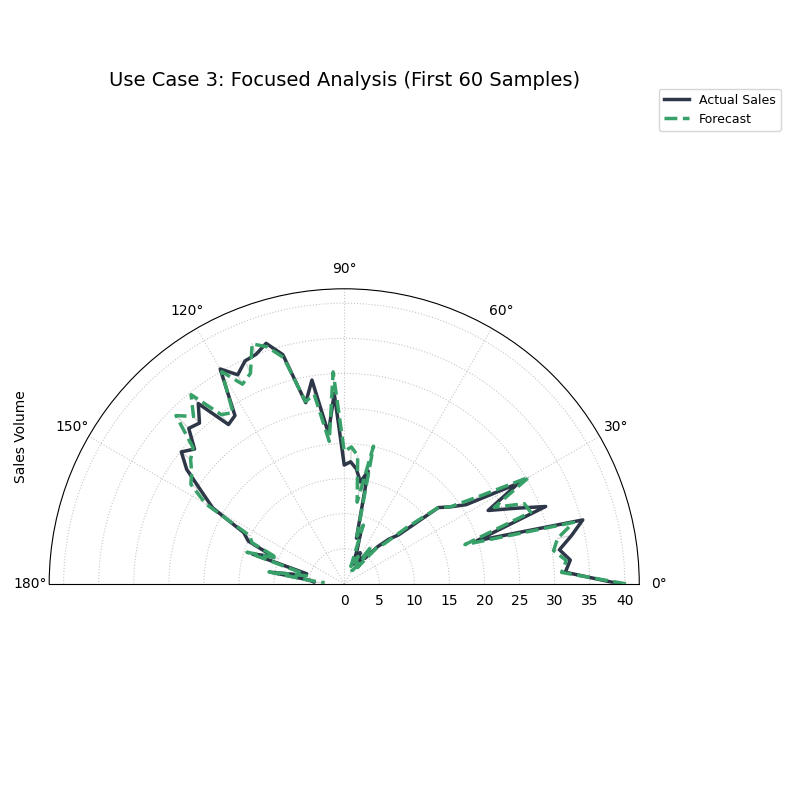
A styled, half-circle plot focusing on a specific period, with thicker, custom-colored lines for better presentation.
For a deeper understanding of the mathematical concepts behind the plot, you may refer to the main Actual vs. Predicted Comparison (plot_actual_vs_predicted()) section.
Anomaly Magnitude
The plot_anomaly_magnitude() function
is a specialized diagnostic tool that focuses exclusively on forecast
failures. It filters out all successful predictions and creates a polar
scatter plot of only the “anomalies”—cases where the true value fell
outside the predicted uncertainty interval. This allows for a detailed
investigation into the location, type, and severity of a model’s most
significant errors.
First, let’s understand the key components of this specialized plot.
Plot Anatomy
Angle (θ): Represents the sample’s position in the dataset. By default, it is based on the DataFrame index, but if
theta_colis provided, the points are ordered according to that column’s values. This can reveal if failures are clustered in time or space.Radius (r): Directly corresponds to the severity of the anomaly, calculated as the absolute distance from the true value to the prediction interval boundary that was breached (\(|y_{actual} - y_{bound}|\)). Points far from the center represent critical failures.
Color: Distinguishes the type of anomaly. The plot uses separate colormaps (
cmap_overandcmap_under) to instantly differentiate between over-predictions (e.g., actual > Q90) and under-predictions (e.g., actual < Q10).
Now, let’s apply this diagnostic to a few real-world scenarios to see how it can be used to generate critical insights.
Use Case 1: Balanced Anomalies in Financial Forecasting
In many forecasting problems, we expect anomalies to be somewhat symmetrical. For a well-calibrated model predicting stock returns, for instance, the number and magnitude of unexpectedly large gains (over- predictions) should be similar to the number and magnitude of unexpectedly large losses (under-predictions). This first example simulates such a balanced scenario.
 1import kdiagram as kd
 2import pandas as pd
 3import numpy as np
 4import matplotlib.pyplot as plt
 5
 6# --- 1. Data Generation: Balanced Anomalies ---
 7np.random.seed(42)
 8n_points = 200
 9df = pd.DataFrame({'trading_day': range(n_points)})
10df['actual_return'] = np.random.normal(loc=0, scale=1.5, size=n_points)
11# A well-calibrated 80% interval
12df['q10'] = -1.28 * 1.5
13df['q90'] = 1.28 * 1.5
14# Manually add some large, symmetric anomalies
15anomaly_indices = np.random.choice(n_points, 40, replace=False)
16df.loc[anomaly_indices, 'actual_return'] = np.random.choice([-1, 1], 40) * np.random.uniform(2.5, 5, 40)
17
18# --- 2. Plotting ---
19kd.plot_anomaly_magnitude(
20    df=df,
21    actual_col='actual_return',
22    q_cols=['q10', 'q90'],
23    title='Use Case 1: Balanced Financial Return Anomalies',
24    cbar=True,
25    s=40,
26    verbose=0,
27    savefig="gallery/images/gallery_anomaly_magnitude_balanced.png"
28)
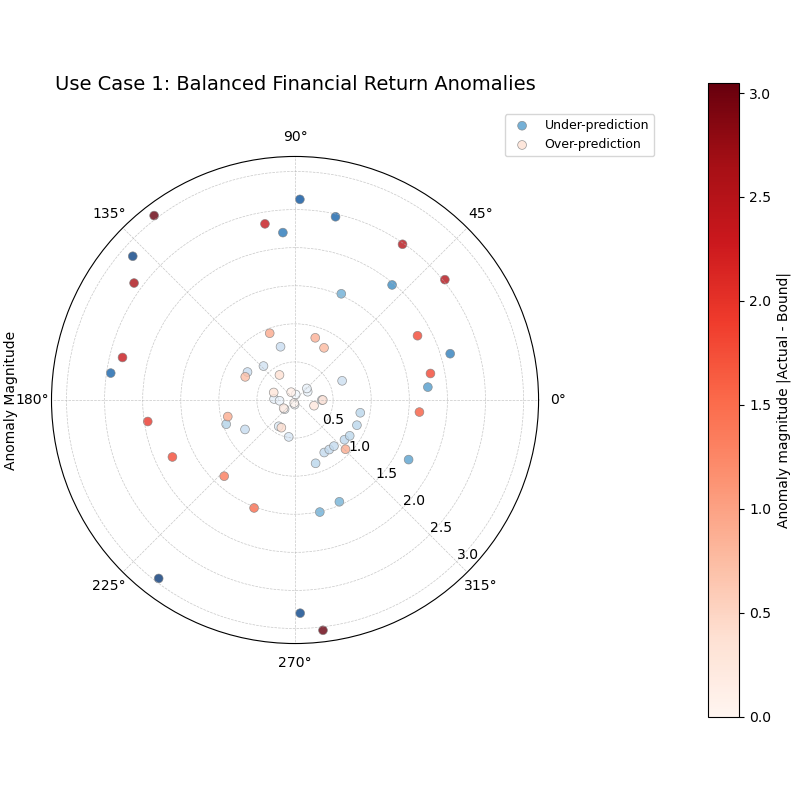
A balanced set of anomalies, with roughly equal numbers of over-predictions (red) and under-predictions (blue) distributed at various magnitudes.
Use Case 2: Asymmetric Risk in Supply Chain Management
Not all anomalies are created equal. In many business contexts, one type of error is far more costly than the other. This plot is an excellent tool for diagnosing such asymmetric risks.
Consider a model forecasting the arrival time of shipments. A shipment arriving a day early (an under-prediction) is a minor inconvenience. A shipment arriving a day late (an over-prediction) can halt a production line and be extremely costly. We need to check if our model is prone to the more dangerous type of error.
 1# --- 1. Data Generation: Asymmetric Anomalies ---
 2np.random.seed(0)
 3n_points = 200
 4df_shipping = pd.DataFrame({'shipment_id': range(n_points)})
 5df_shipping['actual_arrival_day'] = np.random.uniform(5, 10, n_points)
 6df_shipping['q10_arrival'] = df_shipping['actual_arrival_day'] - 1
 7df_shipping['q90_arrival'] = df_shipping['actual_arrival_day'] + 1
 8# Manually add mostly LATE arrivals (over-predictions)
 9late_indices = np.random.choice(n_points, 35, replace=False)
10early_indices = np.random.choice(list(set(range(n_points)) - set(late_indices)), 5, replace=False)
11df_shipping.loc[late_indices, 'actual_arrival_day'] += np.random.uniform(1.5, 4, 35)
12df_shipping.loc[early_indices, 'actual_arrival_day'] -= np.random.uniform(1.5, 4, 5)
13
14# --- 2. Plotting ---
15kd.plot_anomaly_magnitude(
16    df=df_shipping,
17    actual_col='actual_arrival_day',
18    q_cols=['q10_arrival', 'q90_arrival'],
19    title='Use Case 2: Asymmetric Risk in Shipping Forecasts',
20    cbar=True,
21    s=40,
22    verbose=0,
23    savefig="gallery/images/gallery_anomaly_magnitude_asymmetric.png"
24)
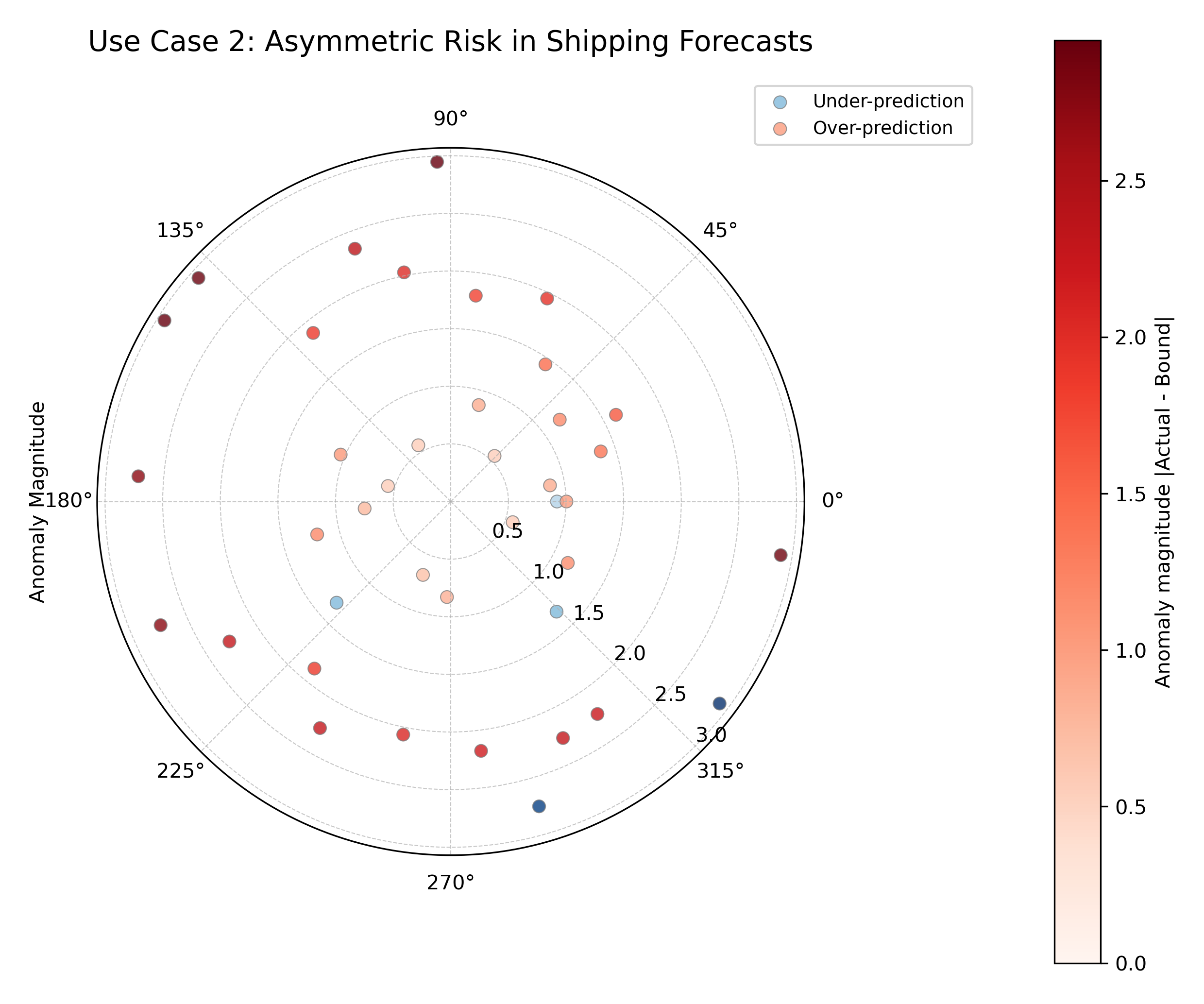
An asymmetric distribution of anomalies, where costly late arrivals (red dots) are far more frequent and severe than early arrivals (blue dots).
For an understanding of the mathematical concepts behind the plot, you may refer to the main Anomaly Magnitude Analysis (plot_anomaly_magnitude()) section.
Overall Coverage
The plot_coverage() function provides
a high-level summary of a model’s reliability. It calculates the
empirical coverage rate—the percentage of times the true value
actually falls within a model’s predicted interval—and visualizes this
score for one or more models, making it an essential first-pass check
for forecast calibration.
Before we explore its use, let’s break down the anatomy of its most distinct visualization: the radar plot.
Plot Anatomy (Radar Chart)
Angle (θ): Each angular sector is assigned to a different model or prediction set provided to the function.
Radius (r): Directly corresponds to the calculated coverage score, ranging from 0 at the center to 1 (100%) at the outer edge.
Azimuth: The azimuth, or the circular path, represents a line of constant coverage. The plot’s grid lines are drawn at specific coverage levels (e.g., 0.2, 0.4, 0.6, 0.8) to serve as a reference.
With this in mind, let’s walk through several real-world scenarios to see how this function can be applied.
Use Case 1: Basic Comparison with a Bar Chart
The simplest way to compare the overall coverage of a few models is with a standard bar chart. It provides a clean, straightforward view of the final scores.
Let’s imagine a financial analyst is comparing two models that predict an 80% confidence interval for a stock’s daily return. They need a quick, unambiguous visualization to see which model’s interval is more reliable.
 1import kdiagram as kd
 2import numpy as np
 3import matplotlib.pyplot as plt
 4
 5# --- 1. Data Generation ---
 6np.random.seed(42)
 7n = 200
 8y_true = np.random.normal(0.0, 1.0, size=n)
 9q_levels = [0.10, 0.90]
10z80 = 1.28155
11sigma_mu = 1.0 # Assume model's error std dev
12mu = y_true + np.random.normal(0.0, sigma_mu, size=n)
13
14# Model A: calibrated -> predicted std matches error std
15s_pred_A = sigma_mu
16q10_A = mu - z80 * s_pred_A
17q90_A = mu + z80 * s_pred_A
18y_pred_A = np.stack([q10_A, q90_A], axis=1)
19
20# Model B: over-confident -> predicted std is too small
21s_pred_B = 0.5 * sigma_mu
22q10_B = mu - z80 * s_pred_B
23q90_B = mu + z80 * s_pred_B
24y_pred_B = np.stack([q10_B, q90_B], axis=1)
25
26# --- 2. Plotting with kind='bar' ---
27kd.plot_coverage(
28    y_true,
29    y_pred_A,
30    y_pred_B,
31    names=['Model A (Calibrated)', 'Model B (Over-Confident)'],
32    q=q_levels,
33    kind='bar',
34    title='Use Case 1: Basic Coverage Comparison (Bar Chart)',
35    verbose=0,
36)
37kd.savefig("gallery/images/gallery_coverage_bar.png")
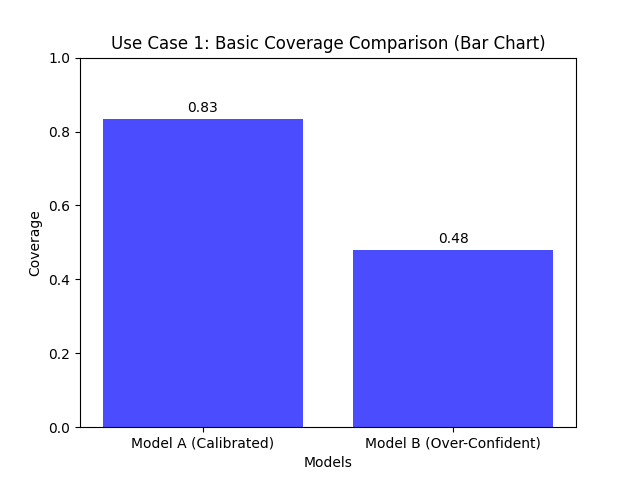
A simple bar chart comparing the empirical coverage of two models against the nominal 80% rate.
Use Case 2: Multi-Model Profile with a Radar Chart
When comparing three or more models, a radar chart can provide a more holistic “profile” view. It’s particularly effective for showing how different models perform relative to the ideal 100% coverage limit and to each other.
Let’s expand our analysis to include a third model that is under-confident (its intervals are too wide).
 1# --- 1. Data Generation (assumes previous data is available) ---
 2# Model C (under-confident -> intervals are too wide)
 3s_pred_C = 1.5 * sigma_mu
 4q10_C = mu - z80 * s_pred_C
 5q90_C = mu + z80 * s_pred_C
 6y_pred_C = np.stack([q10_C, q90_C], axis=1)
 7
 8# --- 2. Plotting with kind='radar' ---
 9kd.plot_coverage(
10    y_true,
11    y_pred_A,
12    y_pred_B,
13    y_pred_C,
14    names=['A (Calibrated)', 'B (Over-Confident)', 'C (Under-Confident)'],
15    q=q_levels,
16    kind='radar',
17    cov_fill=True,
18    radar_fill_alpha=0.3,
19    title='Use Case 2: Multi-Model Coverage Profile (Radar)',
20    verbose=0,
21    savefig="gallery/images/gallery_coverage_radar_multi.png"
22)
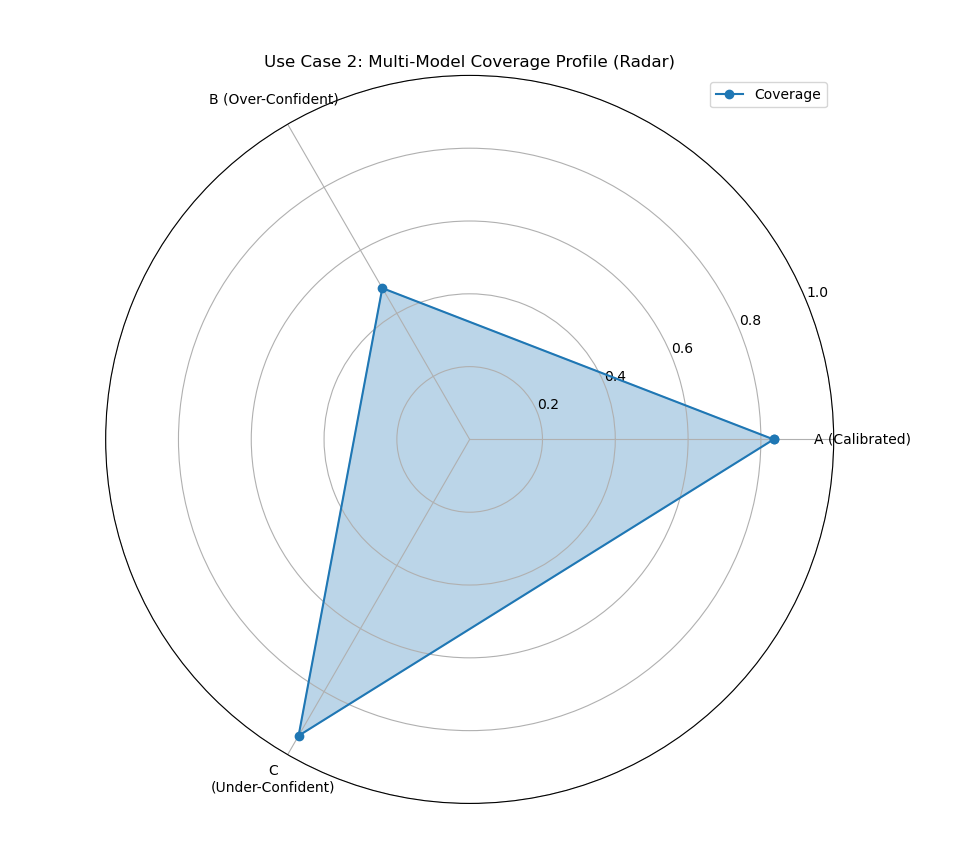
A radar chart comparing three models, showing one well-calibrated, one over-confident (low score), and one under-confident (high score).
Use Case 3: Single-Model Focus with Gradient Fill
When you want to focus on the performance of a single, primary model,
the radar plot with cov_fill=True creates a special visualization
with a radial gradient. This provides a visually appealing way to
show a single score against the [0, 1] scale.
Let’s create a presentation-ready plot for our best model, Model A.
 1# --- 1. Use the well-calibrated Model A from the previous step ---
 2
 3# --- 2. Plotting a single model with gradient fill ---
 4kd.plot_coverage(
 5    y_true,
 6    y_pred_A,
 7    names=['Model A (Calibrated)'],
 8    q=q_levels,
 9    kind='radar',
10    cov_fill=True, # Activate special single-model fill
11    cmap='Greens',
12    title='Use Case 3: Single-Model Coverage Report',
13    verbose=0,
14    savefig="gallery/images/gallery_coverage_radar_single.png"
15)
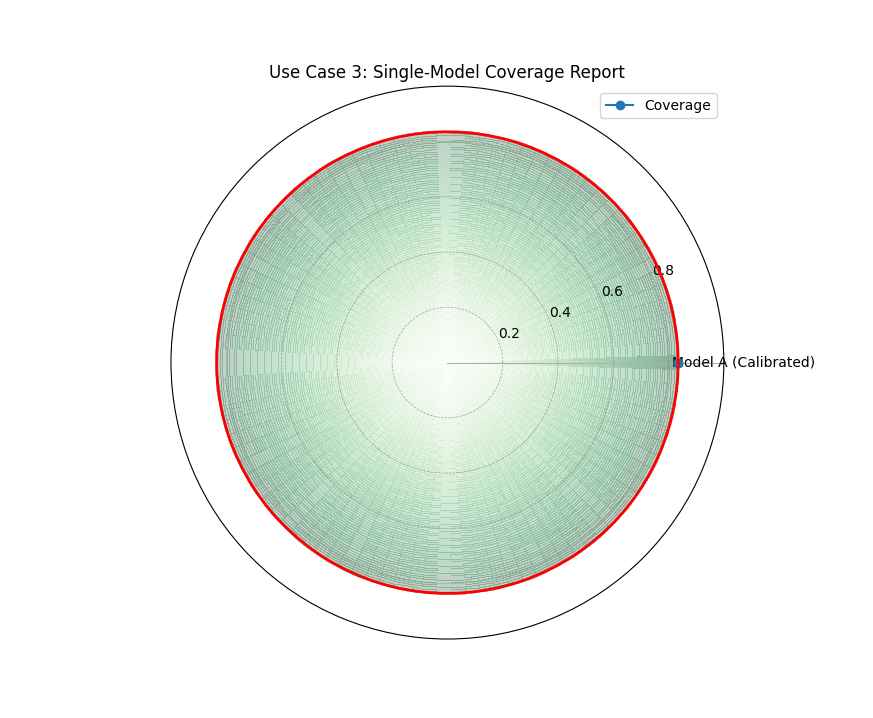
A focused view of a single model’s coverage, where a radial gradient fills up to the calculated score, marked by a solid red circle.
For a deeper understanding of the statistical concepts behind coverage and calibration, please refer back to the main Overall Coverage Scores (plot_coverage()) section.
Coverage Diagnostic
While an overall coverage score tells us if a model is reliable on
average, the plot_coverage_diagnostic()
function tells us when and where it might be failing. It provides a
granular, point-by-point report card of a model’s prediction
intervals, making it an indispensable tool for uncovering hidden
patterns in forecast reliability.
Let’s begin by dissecting the components of this diagnostic plot.
Plot Anatomy
Angle (θ): Represents each individual sample’s position in the dataset, arranged sequentially around the circle. If the data is a time series, the angle effectively represents time. Since this can make the plot busy, the angular tick labels are often hidden by default (
mask_angle=True).Radius (r): Represents the binary coverage status for each sample. A radius of 1 means the actual value was successfully inside the prediction interval. A radius of 0 means the actual value was outside the interval (a failure).
Reference Line: A solid circular line is drawn at a radius equal to the overall average coverage rate, providing an immediate benchmark for the model’s aggregate performance.
Now, let’s apply this plot to a real-world problem to see how it can reveal critical insights that an aggregate score would miss.
Use Case 1: Basic Diagnostic with Random Failures
The most common use case is to check if a model’s interval failures are randomly distributed, as they should be for a well-calibrated model. A random scattering of failures around the circle is the hallmark of a reliable forecast.
Let’s simulate a forecast where the prediction intervals fail randomly about 10% of the time.
 1import kdiagram as kd
 2import pandas as pd
 3import numpy as np
 4import matplotlib.pyplot as plt
 5
 6# --- 1. Data Generation: Random Failures ---
 7np.random.seed(88)
 8n_points = 250
 9df = pd.DataFrame({'point_id': range(n_points)})
10df['actual_val'] = np.random.normal(loc=10, scale=2, size=n_points)
11# An interval that should cover ~90% of the data
12df['q_lower'] = df['actual_val'] - 3.2
13df['q_upper'] = df['actual_val'] + 3.2
14# Introduce random failures
15fail_indices = np.random.choice(n_points, 25, replace=False)
16df.loc[fail_indices, 'actual_val'] = 20
17
18# --- 2. Plotting with Scatter Points ---
19kd.plot_coverage_diagnostic(
20    df=df,
21    actual_col='actual_val',
22    q_cols=['q_lower', 'q_upper'],
23    title='Use Case 1: Diagnostic with Random Failures',
24    as_bars=False, # Use scatter points for a cleaner look
25    fill_gradient=True,
26    coverage_line_color='darkorange',
27    verbose=0,
28    # savefig="gallery/images/gallery_coverage_diagnostic_scatter.png" or use kd.savefig (...)
29)
30kd.savefig("gallery/images/gallery_coverage_diagnostic_scatter.png")
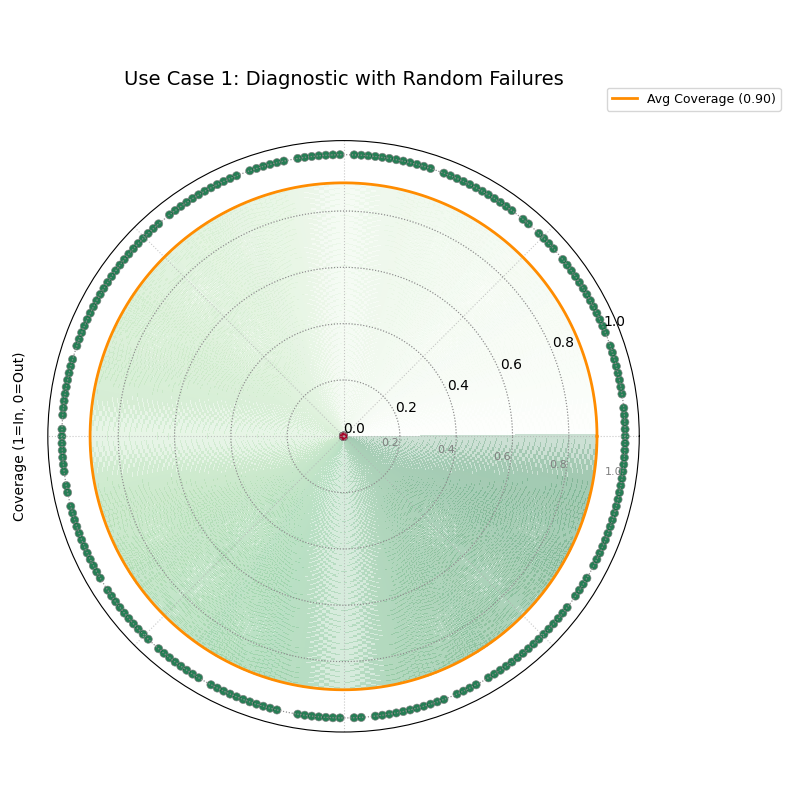
A diagnostic plot where successful coverages are green dots at radius 1, and failures are red dots at radius 0. The failures are scattered randomly.
Use Case 2: Diagnosing Seasonal Model Failure
A model’s greatest weakness is often hidden in patterns. An aggregate coverage score might look good, but what if all the failures occur during a specific, critical season? This is a common and dangerous problem that this diagnostic plot is perfectly designed to uncover.
Let’s simulate a weather forecast model that is reliable most of the year but systematically fails during the summer heatwaves.
 1# --- 1. Data Generation: Seasonal Failures ---
 2np.random.seed(42)
 3n_days = 365
 4days_of_year = np.arange(n_days)
 5df_seasonal = pd.DataFrame({'day': days_of_year})
 6df_seasonal['actual_temp'] = 15 + 10 * np.sin(days_of_year * 2 * np.pi / 365) + np.random.normal(0, 2, n_days)
 7# Model produces intervals that are too narrow only during summer (days 150-240)
 8interval_width = np.ones(n_days) * 8
 9interval_width[(days_of_year > 150) & (days_of_year < 240)] = 3
10df_seasonal['q10_temp'] = df_seasonal['actual_temp'] - interval_width
11df_seasonal['q90_temp'] = df_seasonal['actual_temp'] + interval_width
12# Manually push some summer actuals outside the narrow bounds
13summer_indices = np.where((days_of_year > 150) & (days_of_year < 240))[0]
14fail_indices = np.random.choice(summer_indices, 40, replace=False)
15df_seasonal.loc[fail_indices, 'actual_temp'] += 5
16
17# --- 2. Plotting with Bars for emphasis ---
18kd.plot_coverage_diagnostic(
19    df=df_seasonal,
20    actual_col='actual_temp',
21    q_cols=['q10_temp', 'q90_temp'],
22    title='Use Case 2: Diagnosing Seasonal Failure',
23    as_bars=True, # Use bars to highlight the cluster
24    fill_gradient=False, # Turn off gradient to reduce clutter
25    mask_angle=False, # Show the angular (day) labels
26    verbose=0,
27    savefig="gallery/images/gallery_coverage_diagnostic_seasonal.png"
28)
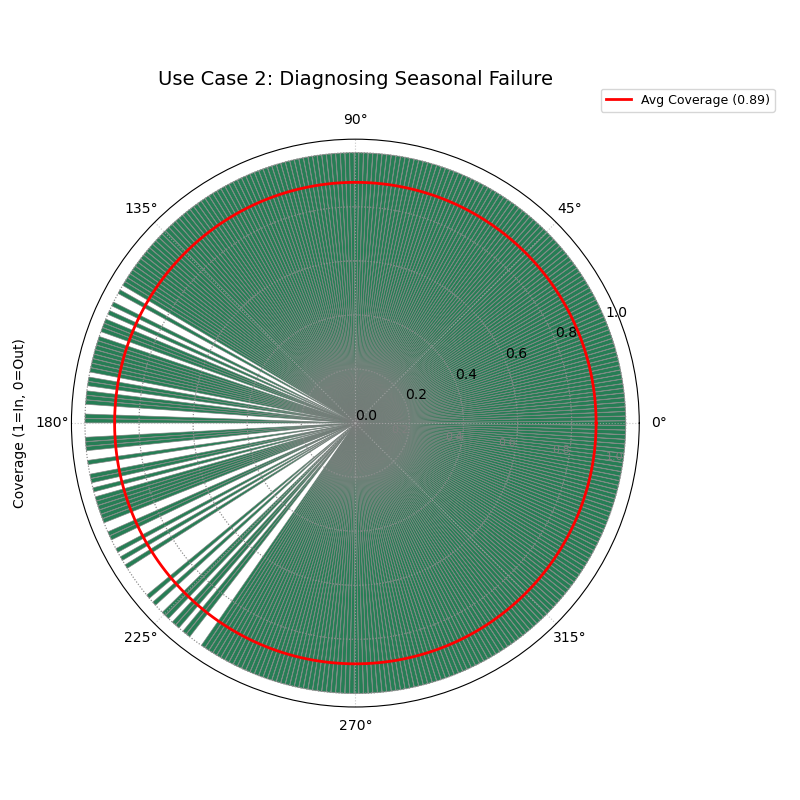
A diagnostic plot using bars, where a dense cluster of failures (bars at radius 0) is clearly visible in one sector of the plot.
For a deeper understanding of the statistical concepts behind coverage and interval calibration, please refer back to the main Point-wise Coverage Diagnostic (plot_coverage_diagnostic()) section.
Interval Consistency
The plot_interval_consistency()
function is an advanced diagnostic for assessing the stability of a
model’s uncertainty estimates over time. While other plots show the
magnitude of uncertainty at a single point, this visualization answers
a deeper question: “Is my model’s assessment of its own uncertainty
reliable and consistent from one forecast period to the next?”
Let’s begin by understanding the components of this powerful plot.
Plot Anatomy
Angle (θ): Represents each individual sample or location, arranged sequentially around the circle by its DataFrame index. Since this ordering is often arbitrary, it is common to hide the angular tick labels using
mask_angle=True.Radius (r): This is the key metric. It represents the variability of the interval width over multiple time steps for a single location. By default (
use_cv=True), it is the Coefficient of Variation (CV), which measures relative variability. Points far from the center have highly inconsistent uncertainty estimates.Color: Provides context by representing the average median (Q50) prediction for each location across all time steps. This helps diagnose if inconsistency (high radius) is related to the magnitude of the prediction itself (color).
Now, let’s apply this diagnostic to a real-world problem, starting with a simple case and moving to a more complex one.
Use Case 1: Identifying Inconsistent Forecasts
The primary use of this plot is to identify locations where a model’s uncertainty estimates are unstable. A model that is very confident one year and very uncertain the next for the same location may not be trustworthy for long-term planning.
Let’s simulate multi-year river flow forecasts for a set of monitoring stations. Some stations will have stable uncertainty, while for others, it will fluctuate wildly.
 1import kdiagram as kd
 2import pandas as pd
 3import numpy as np
 4import matplotlib.pyplot as plt
 5
 6# --- 1. Data Generation: Stable and Unstable Stations ---
 7np.random.seed(42)
 8n_stations = 150
 9years = [2021, 2022, 2023, 2024, 2025]
10df = pd.DataFrame({'station_id': range(n_stations)})
11qlow_cols, qup_cols, q50_cols = [], [], []
12
13# Create a mix of stable and unstable stations
14stable_mask = np.arange(n_stations) < 100
15for year in years:
16    # For unstable stations, width fluctuates randomly each year
17    base_width = np.where(stable_mask, 10, 10 + np.random.uniform(-8, 8, n_stations))
18    median = np.where(stable_mask, 50, 80) + np.random.randn(n_stations)*5
19    df[f'q10_y{year}'] = median - base_width / 2
20    df[f'q90_y{year}'] = median + base_width / 2
21    df[f'q50_y{year}'] = median
22    qlow_cols.append(f'q10_y{year}')
23    qup_cols.append(f'q90_y{year}')
24    q50_cols.append(f'q50_y{year}')
25
26# --- 2. Plotting ---
27kd.plot_interval_consistency(
28    df=df,
29    qlow_cols=qlow_cols,
30    qup_cols=qup_cols,
31    q50_cols=q50_cols,
32    use_cv=True, # Radius = Coefficient of Variation
33    title='Use Case 1: Identifying Unstable Uncertainty Forecasts',
34    cmap='coolwarm',
35    savefig="gallery/images/gallery_interval_consistency_basic.png"
36)
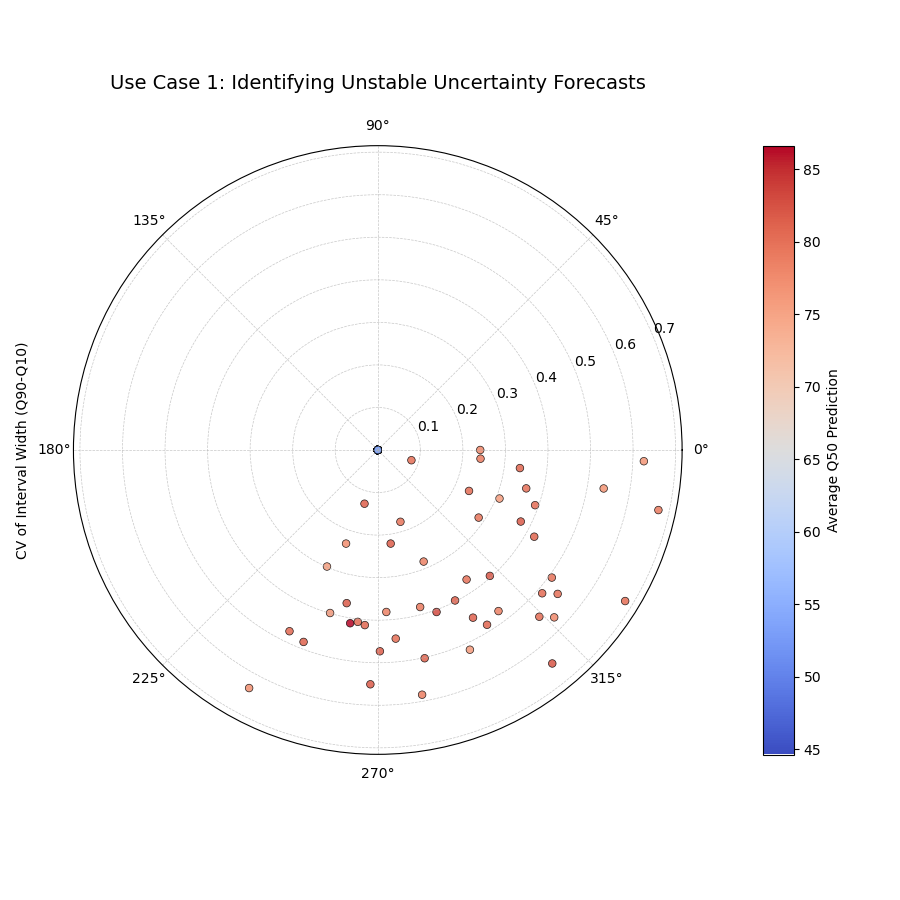
Most stations (points) are clustered near the center, indicating consistent uncertainty estimates, while a few outliers with large radii represent highly unstable forecasts.
Use Case 2: Comparing Absolute vs. Relative Variability
The choice between using the Coefficient of Variation (use_cv=True)
and the Standard Deviation (use_cv=False) for the radius is an
important one.
CV measures relative inconsistency.
Standard Deviation measures absolute inconsistency.
A station with a large average interval width might have a large standard deviation but a small CV, meaning it’s consistently uncertain. Let’s create a scenario to highlight this difference.
 1# --- 1. Data Generation: High vs. Low Flow Stations ---
 2np.random.seed(1)
 3n_stations = 100
 4years = [2021, 2022, 2023, 2024, 2025]
 5df_compare = pd.DataFrame({'id': range(n_stations)})
 6qlow_cols, qup_cols, q50_cols = [], [], []
 7
 8# Low-flow stations: small but relatively inconsistent widths
 9low_flow_mask = np.arange(n_stations) < 50
10for year in years:
11    width = np.where(low_flow_mask, 2 + np.random.randn(n_stations), 20 + np.random.randn(n_stations))
12    median = np.where(low_flow_mask, 10, 100)
13    df_compare[f'q10_y{year}'] = median - width/2
14    df_compare[f'q90_y{year}'] = median + width/2
15    df_compare[f'q50_y{year}'] = median
16    qlow_cols.append(f'q10_y{year}'); qup_cols.append(f'q90_y{year}'); q50_cols.append(f'q50_y{year}')
17
18# --- 2. Create Side-by-Side Plots ---
19fig, (ax1, ax2) = plt.subplots(1, 2, figsize=(16, 8), subplot_kw={'projection': 'polar'})
20
21# Plot with Standard Deviation
22kd.plot_interval_consistency(
23    df=df_compare, ax=ax1, qlow_cols=qlow_cols, qup_cols=qup_cols, q50_cols=q50_cols,
24    use_cv=False, title='Absolute Variability (Std. Dev.)', cmap='viridis'
25)
26# Plot with Coefficient of Variation
27kd.plot_interval_consistency(
28    df=df_compare, ax=ax2, qlow_cols=qlow_cols, qup_cols=qup_cols, q50_cols=q50_cols,
29    use_cv=True, title='Relative Variability (CV)', cmap='viridis'
30)
31
32kd.savefig("gallery/images/gallery_interval_consistency_cv_vs_std.png")
33plt.close(fig)
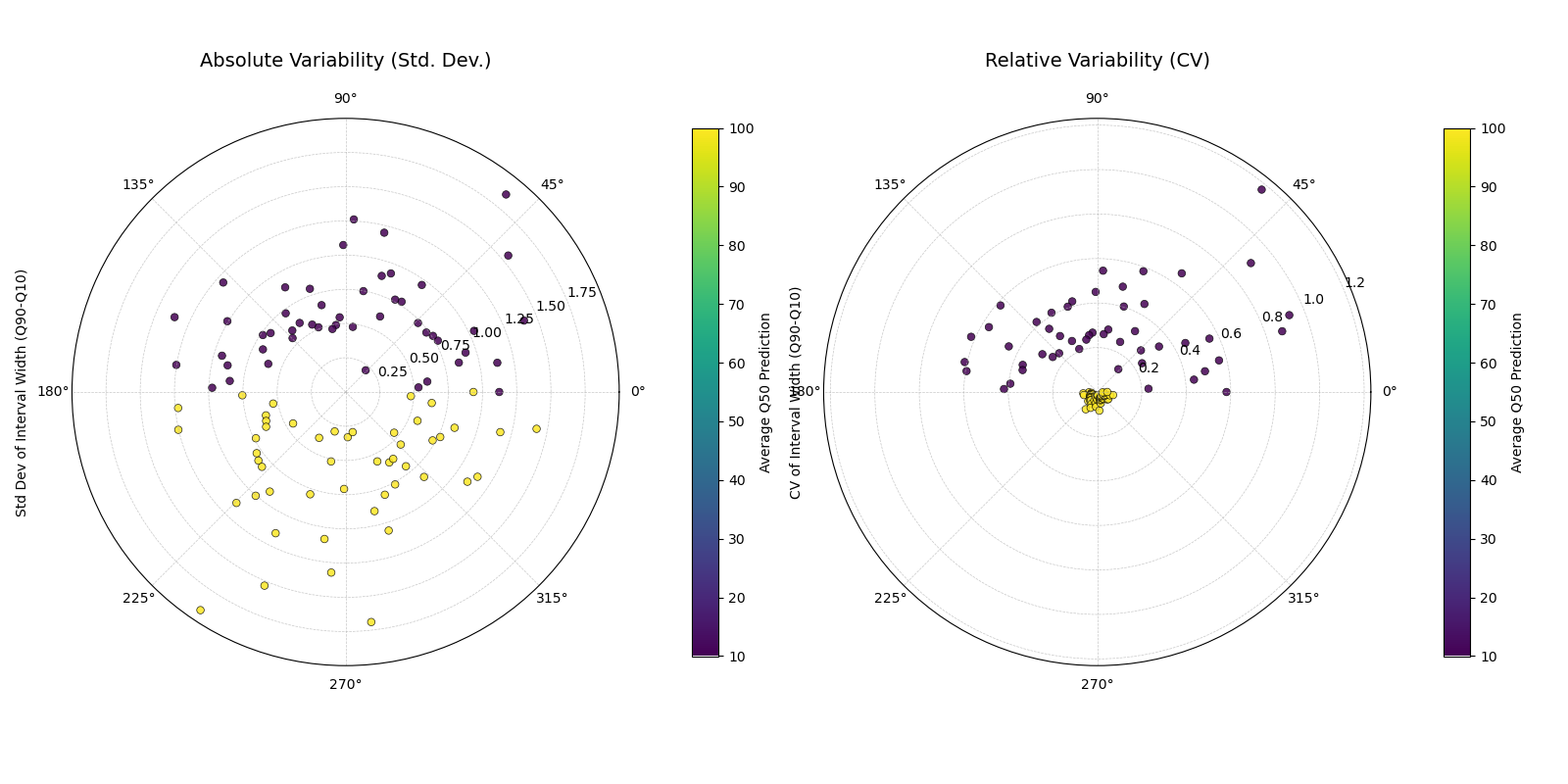
Two plots showing the same data. The left plot (Std. Dev.) shows the high-flow stations as more inconsistent. The right plot (CV) shows the low-flow stations are more inconsistent relative to their small average width.
Best Practice
When comparing the stability of forecasts across different regimes
(e.g., high-flow vs. low-flow stations), always check the consistency
using both absolute (use_cv=False) and relative
(use_cv=True) variability. The best choice depends on your
application: if any absolute change is costly, use standard
deviation. If you care more about proportional predictability, use CV.
For a deeper understanding of the statistical concepts behind forecast stability and variability, please refer back to the main Interval Width Consistency (plot_interval_consistency()) section.
Interval Width
The plot_interval_width() function is a
specialized diagnostic tool for visualizing the magnitude of predicted
uncertainty. It creates a polar scatter plot where the distance from the
center (radius) directly represents the width of a model’s prediction
interval for each sample. It is an essential tool for understanding a
forecast’s sharpness and identifying patterns in its confidence.
Before exploring its applications, let’s first understand how to read this unique plot.
Plot Anatomy
Angle (θ): Represents each individual sample’s position in the dataset, arranged sequentially around the circle by its DataFrame index. Since the index order is often arbitrary, the angular labels are typically hidden via
mask_angle=Trueto avoid confusion.Radius (r): Directly corresponds to the prediction interval width (\(Q_{upper} - Q_{lower}\)). A larger radius means the model is predicting a wider range of outcomes and is therefore more uncertain for that specific sample.
Color: Represents a third, contextual variable defined by the
z_colparameter. This is usefull for diagnosing relationships, such as whether high uncertainty (large radius) correlates with high median predictions (e.g., bright colors).
With this framework, we can now apply the plot to a real-world problem, starting with a basic analysis and progressing to more advanced use cases.
Use Case 1: Basic Assessment of Uncertainty Spread
The most direct application of this plot is to get an immediate visual overview of the sharpness of a forecast. For a given set of predictions, are the uncertainty intervals generally wide or narrow? And is the uncertainty consistent across all samples?
Let’s simulate a forecast for a process where the uncertainty is expected to be relatively constant.
 1import kdiagram as kd
 2import pandas as pd
 3import numpy as np
 4import matplotlib.pyplot as plt
 5
 6# --- 1. Data Generation: Constant Uncertainty ---
 7np.random.seed(10)
 8n_points = 200
 9df = pd.DataFrame({'sample_id': range(n_points)})
10# A simple signal
11df['q50_value'] = 50 + 10 * np.sin(np.linspace(0, 4 * np.pi, n_points))
12# Constant interval width
13width = np.random.normal(loc=15, scale=1.5, size=n_points)
14df['q10_value'] = df['q50_value'] - width / 2
15df['q90_value'] = df['q50_value'] + width / 2
16
17# --- 2. Plotting ---
18# We don't provide a z_col, so color will default to the radius (width)
19kd.plot_interval_width(
20    df=df,
21    q_cols=['q10_value', 'q90_value'],
22    title='Use Case 1: Basic Uncertainty Spread',
23    cmap='cividis',
24    cbar=True,
25    s=35,
26    savefig="gallery/images/gallery_interval_width_basic.png"
27)
28plt.close()
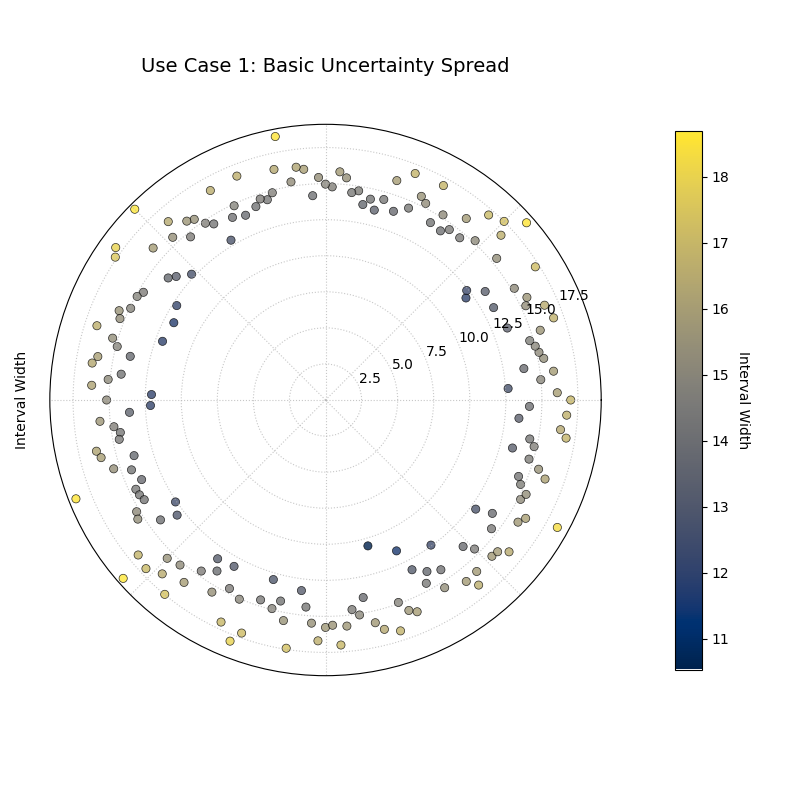
A ring of points where the radius (interval width) is fairly constant, indicating a homoscedastic forecast where uncertainty does not change across samples.
Use Case 2: Correlating Uncertainty with Forecast Magnitude
A more advanced use case is to investigate whether a
model’s uncertainty is correlated with its own central prediction. A
robust model should often be more uncertain when it is predicting
extreme values. The z_col parameter is the key to unlocking this
insight.
Let’s analyze a forecast for daily river flow, where we expect the uncertainty to be much higher during high-flow (flood) events.
 1# --- 1. Data Generation: Heteroscedastic Uncertainty ---
 2np.random.seed(77)
 3n_points = 200
 4df_river = pd.DataFrame({'day': range(n_points)})
 5# A signal representing seasonal river flow
 6df_river['q50_flow'] = 50 + 40 * np.sin(np.linspace(0, 2 * np.pi, n_points))**2
 7# Key: Interval width is now proportional to the median flow
 8width = 5 + (df_river['q50_flow'] * 0.3) * np.random.uniform(0.8, 1.2, n_points)
 9df_river['q10_flow'] = df_river['q50_flow'] - width
10df_river['q90_flow'] = df_river['q50_flow'] + width
11
12# --- 2. Plotting with z_col ---
13kd.plot_interval_width(
14    df=df_river,
15    q_cols=['q10_flow', 'q90_flow'],
16    z_col='q50_flow', # Color the points by the median prediction
17    title='Use Case 2: River Flow Uncertainty (Colored by Median)',
18    cmap='plasma',
19    cbar=True,
20    s=35,
21    savefig="gallery/images/gallery_interval_width_correlated.png"
22)
23plt.close()
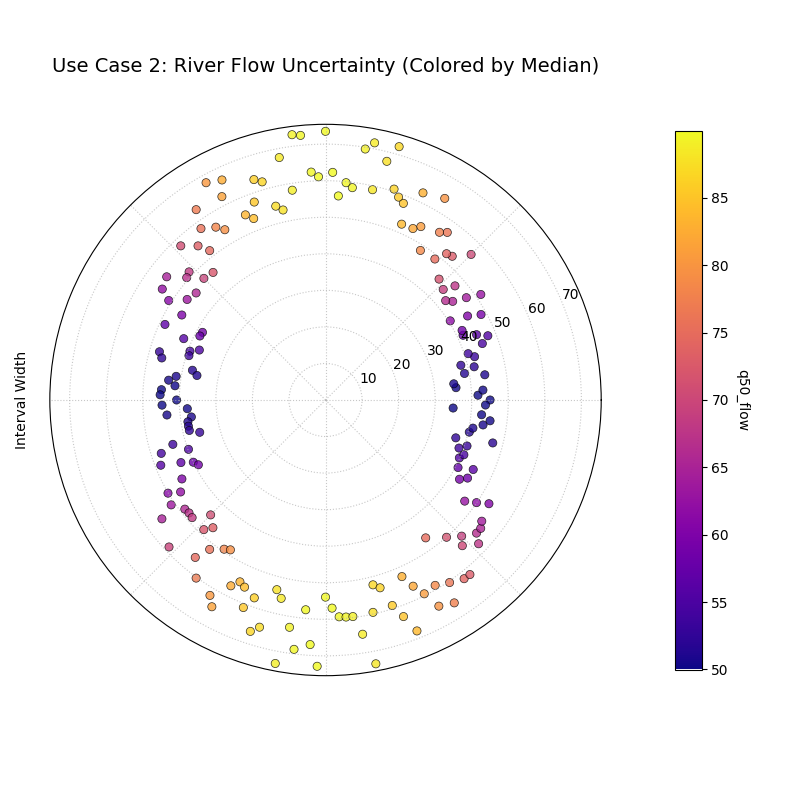
A spiral of points where both the radius (uncertainty) and the color (median flow) are low for some periods and high for others, showing a strong correlation.
Best Practice
When diagnosing heteroscedasticity, setting z_col to your
median prediction column (e.g., ‘q50’) is a good technique. A
strong correlation between the radius (width) and the color
(median) is often a sign of a well-behaved model that correctly
scales its uncertainty with the magnitude of the phenomenon it is
predicting.
For a deeper understanding of the statistical concepts behind forecast sharpness and heteroscedasticity, please refer back to the main Prediction Interval Width Visualization (plot_interval_width()) section.
Model Drift
The plot_model_drift() function is a
specialized tool for diagnosing how a model’s performance degrades
over longer prediction horizons. Using a polar bar chart, it visualizes
how average uncertainty—or another metric of your choice—evolves as the
forecast lead time increases, a phenomenon often called model drift.
First, let’s break down the components of this diagnostic chart.
Plot Anatomy
Angle (θ): Each angular sector is assigned to a different forecast horizon (e.g., “1 Week Ahead”, “2 Weeks Ahead”). This creates a clear, sequential progression around the plot.
Radius (r): Represents the average value of the primary metric for that horizon. By default, this is the mean prediction interval width (\(Q_{upper} - Q_{lower}\)), a measure of uncertainty. A longer bar means higher average uncertainty.
Color: Provides a second dimension of information. By default, it also represents the primary metric (radius), but it can be mapped to a secondary metric (like average error) using the
color_metric_colsparameter.
With this in mind, let’s apply the plot to a practical supply chain problem, starting with a basic uncertainty analysis and then adding a layer of complexity.
Use Case 1: Visualizing Uncertainty Drift
The most common use for this plot is to visualize how forecast sharpness degrades over time. A supply chain manager needs to understand how quickly the uncertainty in their demand forecast grows from one week to the next to manage inventory and mitigate the risk of stock-outs.
This example will show the average prediction interval width for demand forecasts at four different lead times.
 1import kdiagram as kd
 2import pandas as pd
 3import numpy as np
 4import matplotlib.pyplot as plt
 5
 6# --- 1. Data Generation: Demand Forecasts for Multiple Horizons ---
 7np.random.seed(0)
 8n_samples = 100
 9horizons = ['1-Week Ahead', '2-Weeks', '3-Weeks', '4-Weeks']
10df = pd.DataFrame()
11q10_cols, q90_cols = [], []
12
13for i, horizon in enumerate(horizons):
14    # Uncertainty (interval width) increases with each horizon
15    base_demand = 1000 + 50 * i
16    interval_width = 100 + 50 * i
17    q10 = base_demand - interval_width / 2 + np.random.randn(n_samples) * 20
18    q90 = base_demand + interval_width / 2 + np.random.randn(n_samples) * 20
19    df[f'q10_h{i+1}'] = q10
20    df[f'q90_h{i+1}'] = q90
21    q10_cols.append(f'q10_h{i+1}')
22    q90_cols.append(f'q90_h{i+1}')
23
24# --- 2. Plotting ---
25kd.plot_model_drift(
26    df=df,
27    q10_cols=q10_cols,
28    q90_cols=q90_cols,
29    horizons=horizons,
30    title='Use Case 1: Demand Forecast Uncertainty Drift',
31    savefig="gallery/images/gallery_model_drift_basic.png"
32)
33plt.close()
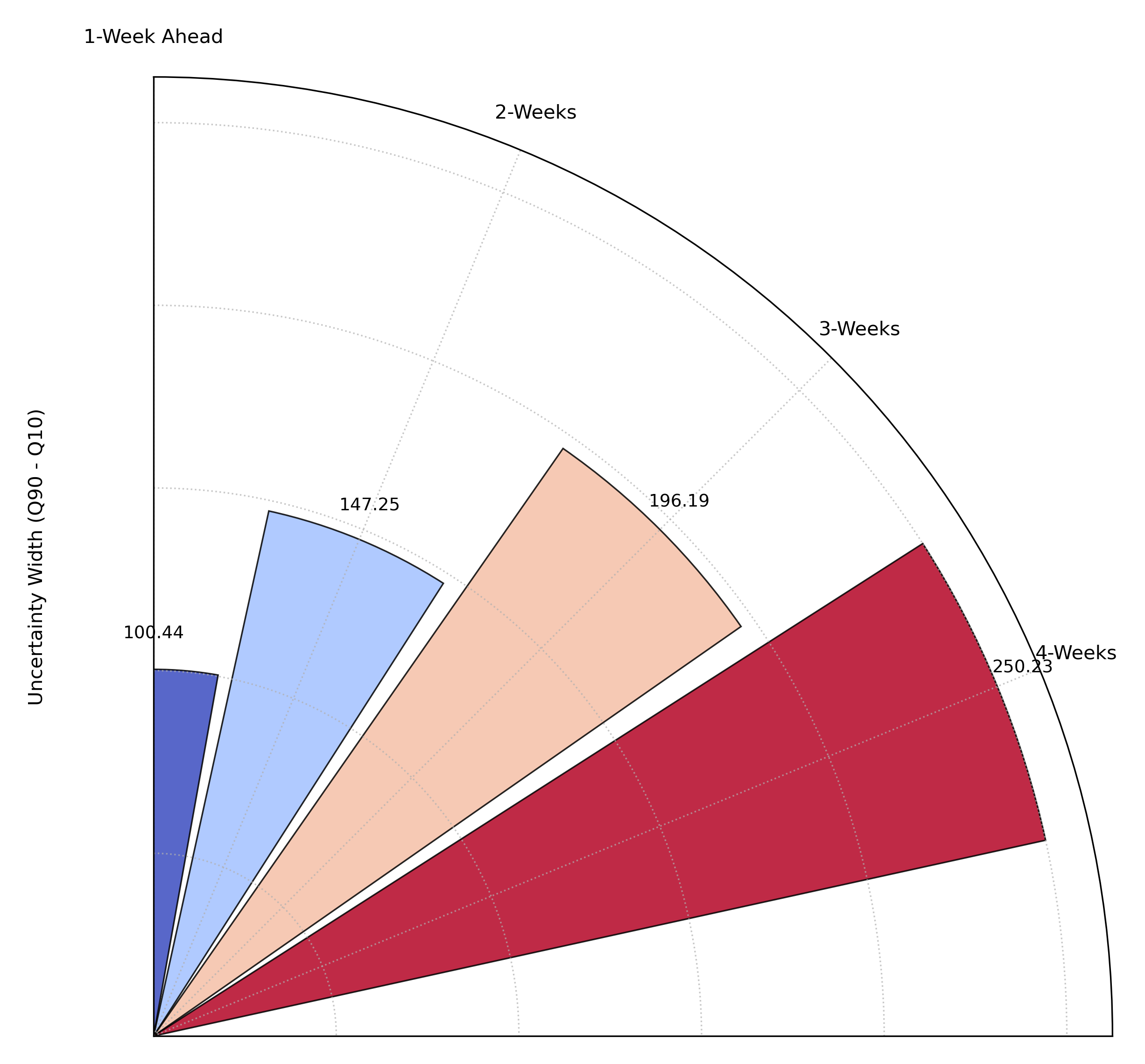
A polar bar chart where each bar represents a forecast horizon. The increasing height of the bars shows that the average prediction uncertainty grows as the forecast lead time increases.
Use Case 2: Adding a Second Metric with Color
While uncertainty is critical, it’s only half the story. We also care
about accuracy. Does the model’s error (e.g., Mean Absolute Error) also
increase at longer horizons? The color_metric_cols parameter allows
us to layer this second dimension of information onto our plot.
Let’s simulate the MAE for each horizon and use it to color the bars, giving us a simultaneous view of both uncertainty and accuracy drift.
 1# --- 1. Data Generation (assumes df from previous step is available) ---
 2# Simulate Mean Absolute Error (MAE) for each horizon, which also increases
 3mae_cols = []
 4for i, horizon in enumerate(horizons):
 5    # MAE increases with each horizon
 6    mae = 25 + 15 * i + np.random.uniform(-5, 5, n_samples)
 7    df[f'mae_h{i+1}'] = mae
 8    mae_cols.append(f'mae_h{i+1}')
 9
10# --- 2. Plotting with a secondary color metric ---
11kd.plot_model_drift(
12    df=df,
13    q10_cols=q10_cols,
14    q90_cols=q90_cols,
15    horizons=horizons,
16    color_metric_cols=mae_cols, # Use MAE to color the bars
17    value_label="Avg. Uncertainty Width", # Label for radius
18    # The color bar label is automatically inferred from the column names
19    title='Use Case 2: Uncertainty Drift (Colored by MAE)',
20    acov='eighth_circle',
21    cmap='YlOrRd', # Use a sequential colormap for error
22)
23kd.savefig("gallery/images/gallery_model_drift_color.png")
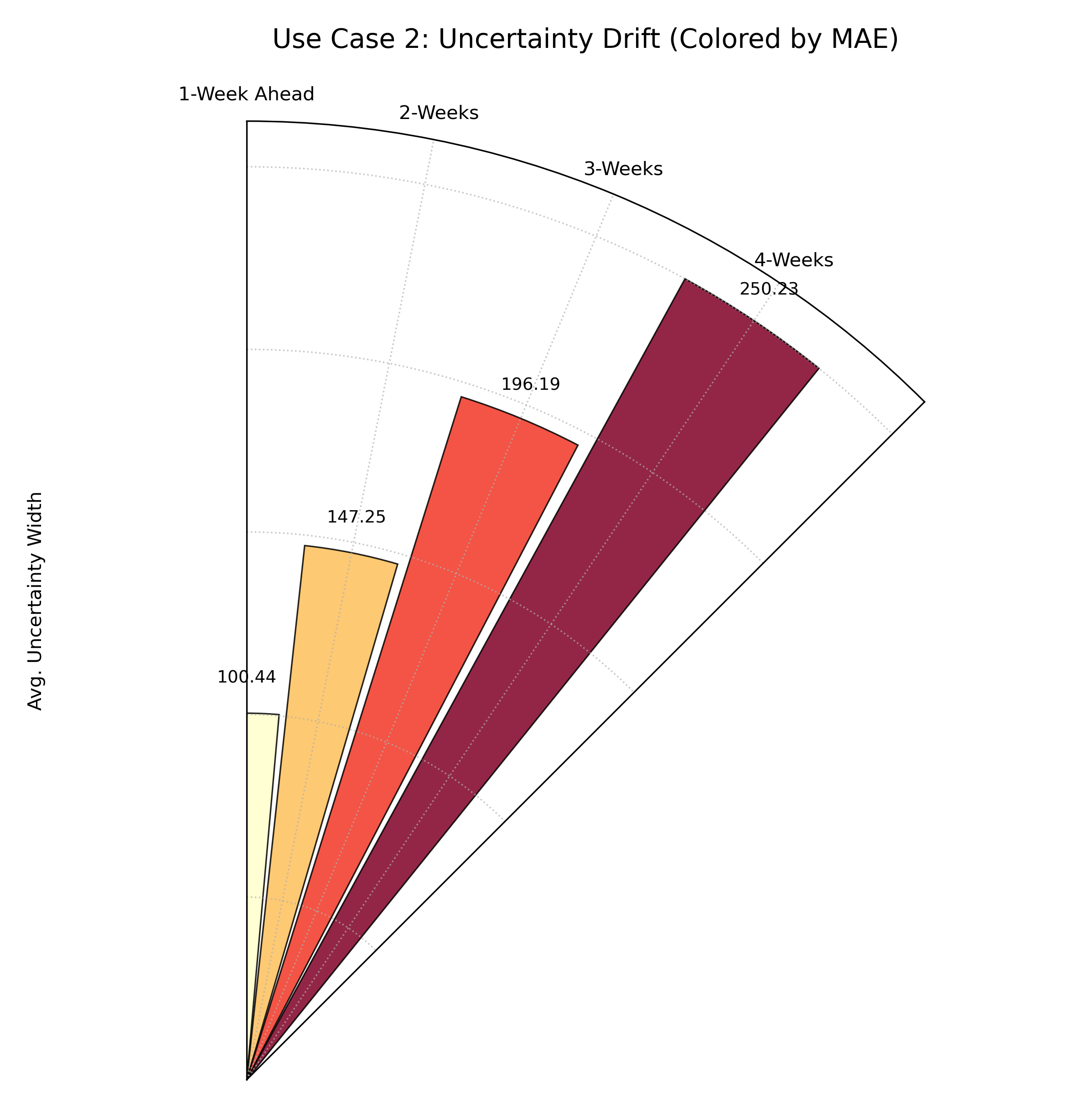
A polar bar chart where bar height still shows uncertainty, but the color now represents the average forecast error (MAE), with darker red indicating higher error.
For a deeper understanding of the statistical concepts behind model drift and forecast evaluation, please refer back to the main Evaluating Classification Models and Model Forecast Drift (plot_model_drift()) sections.
Temporal Uncertainty
The plot_temporal_uncertainty() function
is a flexible, general-purpose tool for visualizing and comparing
multiple data series in a polar context. While it can be used for many
tasks, its primary application is to display the full spread of a
probabilistic forecast at a single point in time by plotting several of
its predicted quantiles simultaneously.
Let’s first break down the components of this versatile plot.
Plot Anatomy
Angle (θ): Represents each individual sample’s position in the dataset, arranged sequentially around the circle by its DataFrame index. As this index order may not always be meaningful, it is often best practice to hide the angular labels by setting
mask_angle=True.Radius (r): Corresponds to the magnitude of the predicted value for each specific quantile series. When
normalize=False, this shows the raw predicted values (e.g., stock price). Whennormalize=True, it shows the relative position of the prediction within that series’ own min-max range.Color: Each data series (e.g., Q10, Q25, Q50) is assigned a distinct color from the chosen
cmap, making it easy to distinguish the different layers of the forecast.
With this in mind, let’s explore how this plot can be used to analyze a complex financial forecast.
Use Case 1: Visualizing a Symmetric Forecast Distribution
The most common use case is to visualize the shape and spread of a forecast’s uncertainty. A well-behaved, simple forecast might produce a symmetrical uncertainty distribution around its median prediction.
Let’s simulate a forecast for a stock’s price over 100 days, where the predicted uncertainty is stable and symmetric.
 1import kdiagram as kd
 2import pandas as pd
 3import numpy as np
 4import matplotlib.pyplot as plt
 5
 6# --- 1. Data Generation: Symmetric Uncertainty ---
 7np.random.seed(42)
 8n_days = 100
 9base_price = 150 + np.cumsum(np.random.randn(n_days))
10df = pd.DataFrame()
11# Symmetrical quantiles around a median (Q50)
12df['q10'] = base_price - 15
13df['q25'] = base_price - 7
14df['q50'] = base_price
15df['q75'] = base_price + 7
16df['q90'] = base_price + 15
17
18# --- 2. Plotting ---
19kd.plot_temporal_uncertainty(
20    df=df,
21    q_cols=['q10', 'q25', 'q50', 'q75', 'q90'],
22    names=['Q10', 'Q25', 'Median', 'Q75', 'Q90'],
23    normalize=False, # Plot actual price values
24    title='Use Case 1: Symmetric Stock Price Forecast',
25    savefig="gallery/images/gallery_temporal_uncertainty_symmetric.png"
26)
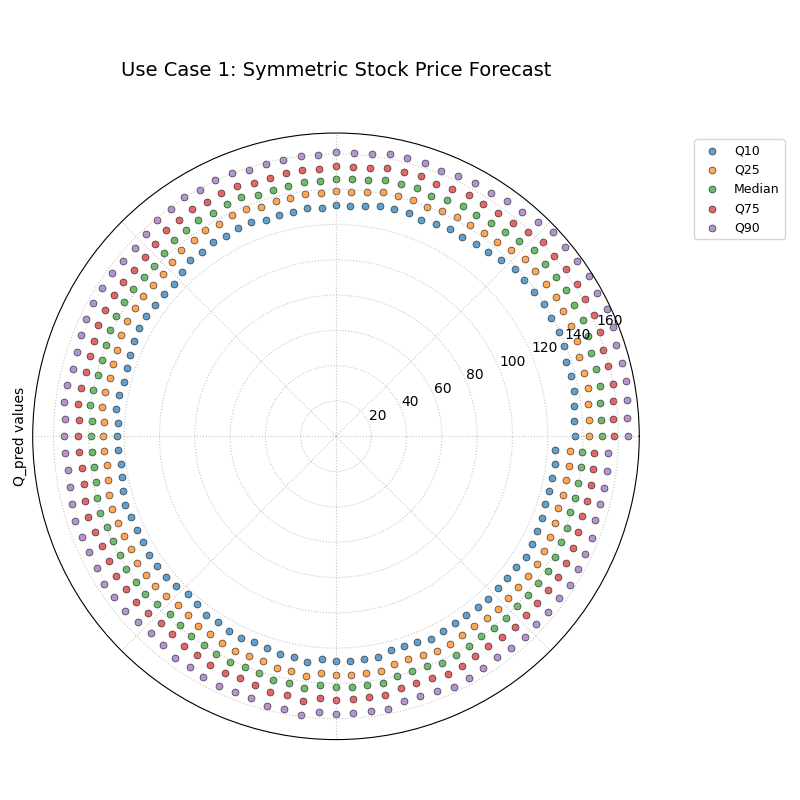
Five concentric, parallel rings of points, representing a symmetric probabilistic forecast where the uncertainty spread is constant.
Use Case 2: Diagnosing Skewed Uncertainty
Real-world uncertainty is often not symmetric. For example, a stock’s price might have a much larger potential upside (risk of a price surge) than a downside. This plot is an ideal tool for diagnosing such skewed distributions.
Let’s simulate a forecast for a volatile tech stock, where the model predicts a greater chance of large positive returns than large negative ones.
 1# --- 1. Data Generation: Skewed Uncertainty ---
 2np.random.seed(10)
 3n_days = 100
 4base_price = 150 + np.cumsum(np.random.randn(n_days))
 5df_skewed = pd.DataFrame()
 6# Asymmetrical quantiles: larger gap on the upside
 7df_skewed['q10'] = base_price - 5
 8df_skewed['q25'] = base_price - 2
 9df_skewed['q50'] = base_price
10df_skewed['q75'] = base_price + 8  # Larger step
11df_skewed['q90'] = base_price + 20 # Much larger step
12
13# --- 2. Plotting ---
14kd.plot_temporal_uncertainty(
15    df=df_skewed,
16    q_cols=['q10', 'q25', 'q50', 'q75', 'q90'],
17    normalize=False,
18    title='Use Case 2: Skewed Stock Price Forecast',
19    savefig="gallery/images/gallery_temporal_uncertainty_skewed.png"
20)
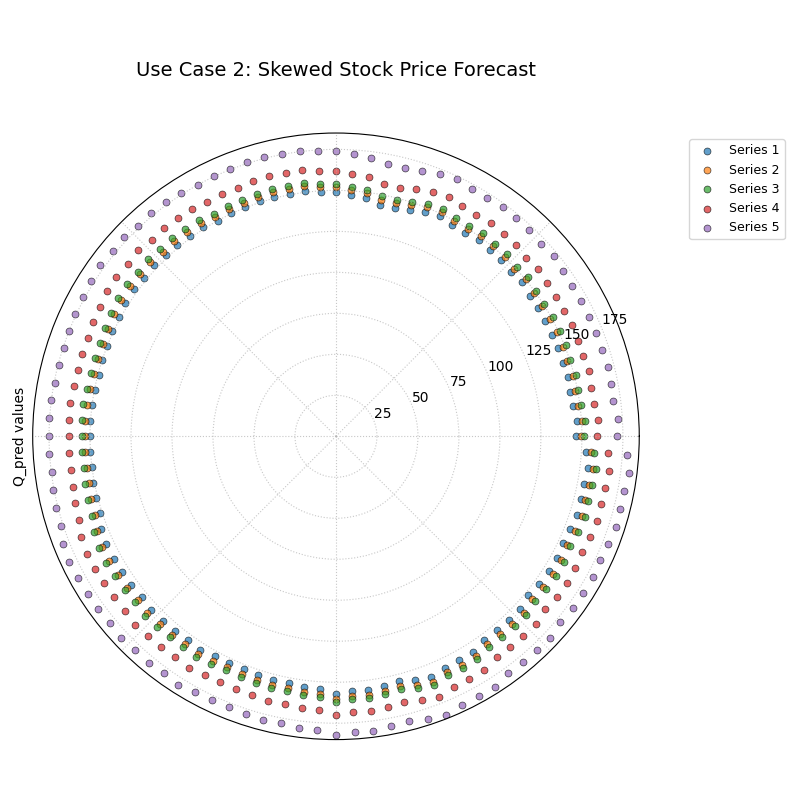
Five concentric rings of points that are not evenly spaced. The outer rings (Q75, Q90) are much further apart than the inner rings (Q10, Q25).
For a deeper understanding of the statistical concepts behind probabilistic forecasting and quantile analysis, please refer back to the main General Polar Series Visualization (plot_temporal_uncertainty()) section.
Uncertainty Drift
The plot_uncertainty_drift() function
is a tool for visualizing how an entire spatial pattern of
uncertainty evolves over multiple time steps. Unlike plots that show an
average drift, this visualization uses concentric rings to display a
complete “map” of uncertainty for each forecast period, allowing you to
diagnose complex spatiotemporal changes.
Let’s begin by understanding the components of this innovative plot.
Plot Anatomy
Angle (θ): Represents each individual sample or location in the dataset, arranged sequentially around the circle. For geospatial data, this could correspond to longitude or a station index. Since the raw index may not be meaningful, it’s common to hide the angular tick labels with
mask_angle=True.Concentric Rings: Each colored ring corresponds to a different time step or forecast horizon (e.g., Year 1, Year 2). Later time steps are plotted on outer rings.
Radius (r) of a Ring: The radius of the line on any given ring is a combination of a base offset (to separate the rings) and a component proportional to the globally normalized interval width. Therefore, “bumps” or outward bulges in a ring signify regions of higher relative uncertainty at that time step.
Now, let’s apply this plot to a critical environmental forecasting problem.
Use Case 1: Identifying Uniform Uncertainty Growth
In the simplest scenario, a model’s uncertainty might be expected to grow uniformly over time and across all locations. This plot can validate that assumption.
Let’s simulate a multi-year land subsidence forecast for a region where we expect the uncertainty to increase at the same rate everywhere.
 1import kdiagram as kd
 2import pandas as pd
 3import numpy as np
 4import matplotlib.pyplot as plt
 5
 6# --- 1. Data Generation: Uniform Drift ---
 7np.random.seed(55)
 8n_locations = 100
 9years = [2024, 2025, 2026, 2027]
10df = pd.DataFrame({'id': range(n_locations)})
11qlow_cols, qup_cols = [], []
12
13for i, year in enumerate(years):
14    ql, qu = f'subsidence_{year}_q10', f'subsidence_{year}_q90'
15    qlow_cols.append(ql); qup_cols.append(qu)
16    # Uncertainty width increases with the year, but is uniform across locations
17    width = 2.0 + i * 1.5
18    median = 10 + i * 2
19    df[ql] = median - width / 2
20    df[qu] = median + width / 2
21
22# --- 2. Plotting ---
23kd.plot_uncertainty_drift(
24    df=df,
25    qlow_cols=qlow_cols,
26    qup_cols=qup_cols,
27    dt_labels=[str(y) for y in years],
28    title='Use Case 1: Uniform Uncertainty Drift',
29    savefig="gallery/images/gallery_uncertainty_drift_uniform.png"
30)
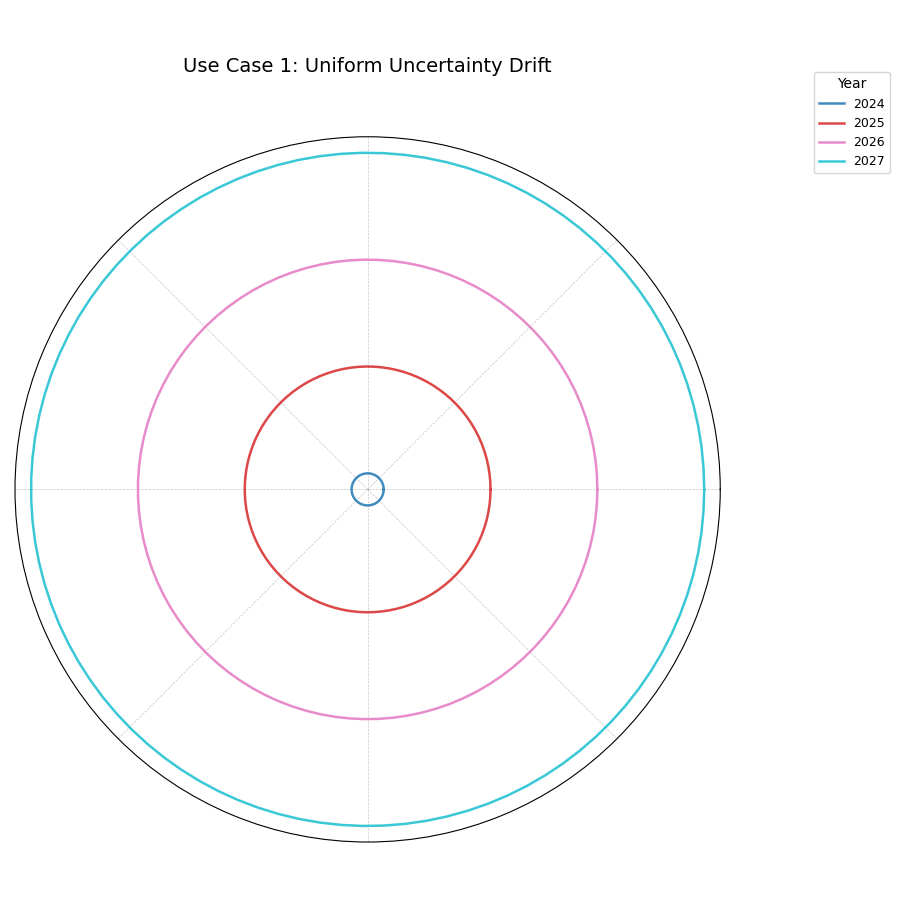
A series of perfectly circular and evenly spaced concentric rings, each representing a year. This indicates that uncertainty grows uniformly over time and space.
Use Case 2: Diagnosing Spatiotemporal Drift
More realistically, a model’s uncertainty drift is not uniform. Certain regions may become unpredictable much faster than others. This plot excels at revealing these complex, combined spatial and temporal patterns.
Let’s simulate a more realistic scenario where subsidence uncertainty grows much faster in a specific, localized region.
 1# --- 1. Data Generation: Spatiotemporal Drift ---
 2np.random.seed(1)
 3n_locations = 200
 4locations_angle = np.linspace(0, 360, n_locations, endpoint=False)
 5df_spatial = pd.DataFrame({'id': range(n_locations)})
 6years = [2024, 2025, 2026, 2027]
 7qlow_cols, qup_cols = [], []
 8
 9for i, year in enumerate(years):
10    ql, qu = f'subsidence_{year}_q10', f'subsidence_{year}_q90'
11    qlow_cols.append(ql); qup_cols.append(qu)
12    # Uncertainty grows over time AND in a specific region (90-180 degrees)
13    regional_effect = (locations_angle > 90) & (locations_angle < 180)
14    base_width = 5 + 2 * i
15    width = base_width + np.where(regional_effect, 8 * i, 0) # Strong regional growth
16    median = 10
17    df_spatial[ql] = median - width / 2
18    df_spatial[qu] = median + width / 2
19
20# --- 2. Plotting ---
21kd.plot_uncertainty_drift(
22    df=df_spatial,
23    qlow_cols=qlow_cols,
24    qup_cols=qup_cols,
25    dt_labels=[str(y) for y in years],
26    title='Use Case 2: Diagnosing Spatiotemporal Drift',
27    cmap='plasma',
28    savefig="gallery/images/gallery_uncertainty_drift_spatial.png"
29)
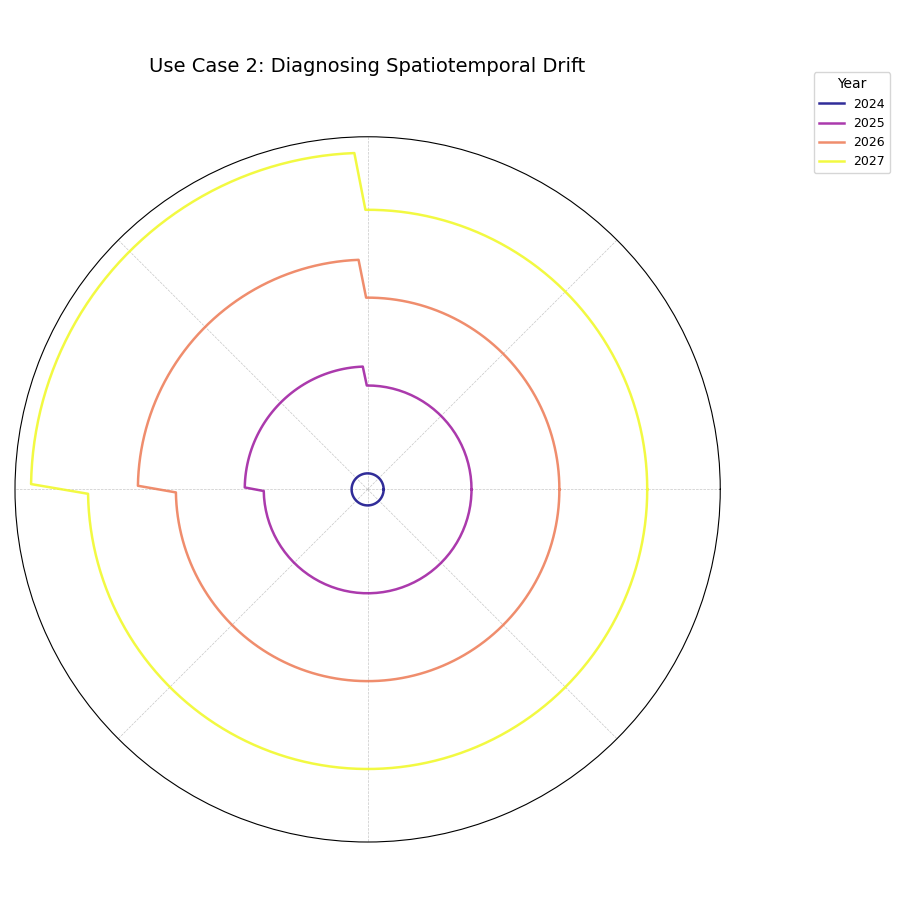
A series of concentric rings where a distinct “bulge” or outward protrusion appears in the top-left quadrant and grows larger with each successive year.
See Also
The plot_model_drift() function
provides a complementary view. While this plot shows the full
spatial pattern of uncertainty drift, plot_model_drift
focuses on the average drift across all locations, summarizing
it with a simple bar chart. Using both provides a complete picture.
For a deeper understanding of the statistical concepts behind spatiotemporal uncertainty and model drift, please refer back to the main Multi-Time Uncertainty Drift Rings (plot_uncertainty_drift()) section.
Prediction Velocity
The plot_velocity() function moves
beyond static predictions to visualize the dynamics of change. It
calculates the average rate of change (or “velocity”) of a forecast’s
central tendency over time for multiple locations. This is essential
for identifying “hotspots” where a phenomenon is changing most rapidly
and for understanding the underlying trends in a system.
First, let’s explore the components of this dynamic visualization.
Plot Anatomy
Angle (θ): Represents each individual sample or location, arranged sequentially around the circle by its DataFrame index. Since this ordering is often arbitrary, the angular labels can be hidden with
mask_angle=Trueto focus on the radial patterns.Radius (r): Corresponds to the average velocity of the median (Q50) prediction over the specified time steps. A larger radius signifies a faster average rate of change for that location. The radius can be normalized or shown in its raw units.
Color: Provides a crucial second layer of context. It can either represent the average absolute magnitude of the prediction (
use_abs_color=True) or the velocity itself (use_abs_color=False), which is usefull for showing the direction of change.
With this framework, let’s apply the plot to a critical environmental monitoring problem.
Use Case 1: Identifying Hotspots of Change
The most direct use of this plot is to identify which locations are changing the fastest. We can visualize the rate of change (velocity) as the radius and use color to provide context about the absolute state of each location.
Let’s simulate a multi-year forecast of land subsidence (sinking) for various locations in a coastal city. The primary goal is to find the areas that are sinking most rapidly.
 1import kdiagram as kd
 2import pandas as pd
 3import numpy as np
 4import matplotlib.pyplot as plt
 5
 6# --- 1. Data Generation: Land Subsidence Forecast ---
 7np.random.seed(42)
 8n_locations = 150
 9df = pd.DataFrame({'location_id': range(n_locations)})
10years = [2024, 2025, 2026, 2027]
11q50_cols = []
12# Assign a base subsidence level and a variable velocity to each location
13base_subsidence = np.random.uniform(5, 20, n_locations)
14velocity = np.linspace(0.5, 5, n_locations) # Some sink slow, some fast
15np.random.shuffle(velocity) # Randomize the velocities
16
17for i, year in enumerate(years):
18    q50_col = f'subsidence_{year}_q50'
19    q50_cols.append(q50_col)
20    df[q50_col] = base_subsidence + velocity * i
21
22# --- 2. Plotting ---
23kd.plot_velocity(
24    df=df,
25    q50_cols=q50_cols,
26    title='Use Case 1: Land Subsidence Velocity Hotspots',
27    use_abs_color=True, # Color by total subsidence magnitude
28    normalize=True,     # Normalize velocity for a clear [0,1] radius
29    cmap='plasma',
30    cbar=True,
31    s=35,
32    savefig="gallery/images/gallery_velocity_basic.png"
33)
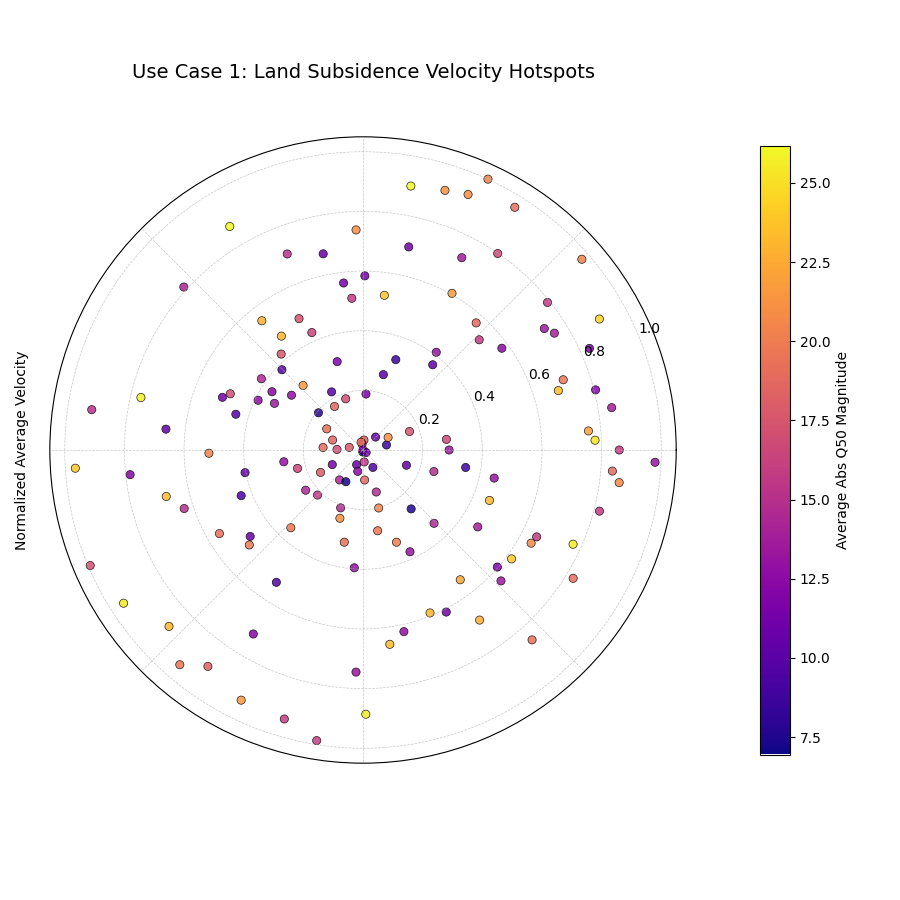
Points spiraling outwards, where the distance from the center (radius) indicates the normalized rate of sinking, and the color indicates the average total subsidence.
Use Case 2: Distinguishing Direction of Change
Beyond just the speed of change, we often need to know the direction.
Is a value increasing or decreasing? By setting use_abs_color=False
and using a diverging colormap, we can use color to represent the
direction and magnitude of the velocity itself.
Let’s analyze a forecast of glacier mass balance (the net gain or loss of ice) for different glaciers. Some are predicted to grow (positive velocity), while most are predicted to shrink (negative velocity).
 1# --- 1. Data Generation: Glacier Mass Balance ---
 2np.random.seed(1)
 3n_glaciers = 100
 4df_glaciers = pd.DataFrame({'glacier_id': range(n_glaciers)})
 5years = [2025, 2030, 2035, 2040]
 6q50_cols = []
 7# Most glaciers are shrinking (negative velocity)
 8base_mass = np.random.uniform(100, 500, n_glaciers)
 9velocity = np.random.normal(-10, 3, n_glaciers)
10# A few are stable or growing
11velocity[np.random.choice(n_glaciers, 10, replace=False)] *= -0.5
12
13for i, year in enumerate(years):
14    q50_col = f'mass_{year}_q50'
15    q50_cols.append(q50_col)
16    df_glaciers[q50_col] = base_mass + velocity * i
17
18# --- 2. Plotting with color representing velocity direction ---
19kd.plot_velocity(
20    df=df_glaciers,
21    q50_cols=q50_cols,
22    title='Use Case 2: Glacier Mass Balance Velocity',
23    use_abs_color=False, # Color by velocity itself
24    normalize=False,     # Use raw velocity for the radius
25    cmap='coolwarm',     # A diverging colormap (blue-white-red)
26    cbar=True,
27    savefig="gallery/images/gallery_velocity_directional.png"
28)
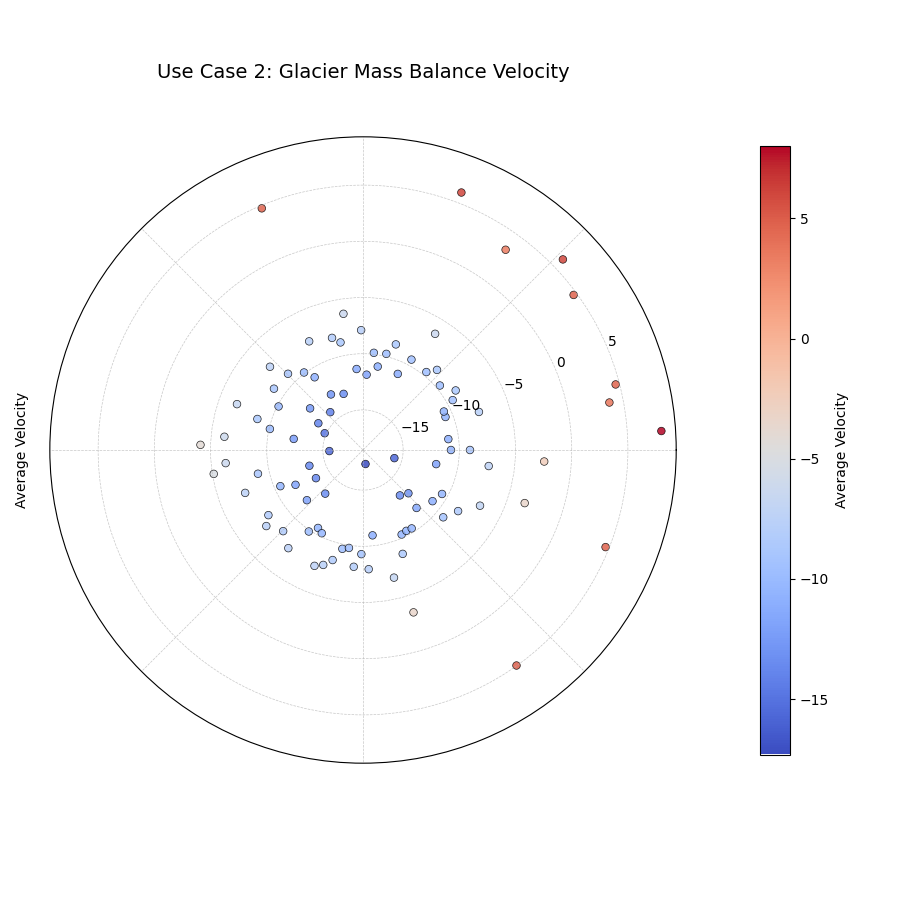
Points colored with a diverging colormap. The blue points show a negative velocity (shrinking), while the few red points show a positive velocity (growing).
Best Practice
When your data’s rate of change can be both positive and negative,
set use_abs_color=False and choose a diverging cmap (like
coolwarm, RdBu, or seismic). This is the most effective
way to visually separate trends of increase versus decrease.
For a deeper understanding of the statistical concepts behind analyzing temporal trends, please refer back to the main Prediction Velocity Visualization (plot_velocity()) section.
Radial Density Ring
The plot_radial_density_ring() function
offers a unique and interesting way to visualize the shape of a
one-dimensional probability distribution. It transforms a standard
histogram or density plot into a smooth, continuous polar ring, where
the color intensity reveals the most common values. This is an
invaluable tool for understanding the fundamental character of your data,
be it forecast errors, interval widths, or any other continuous metric.
Let’s begin by understanding the components of this elegant visualization.
Plot Anatomy
Angle (θ): The angular dimension carries no information in this plot. The density is repeated around the full circle purely for aesthetic effect, creating the “ring” shape. The angular labels are therefore hidden by default.
Radius (r): Directly corresponds to the value of the variable being analyzed (e.g., forecast error, interval width). The radial axis represents the domain of your data.
Color: Represents the normalized probability density at each radial position, calculated via Kernel Density Estimation (KDE). Bright, intense colors indicate the most common values (the peaks, or modes, of the distribution).
This function can derive the data to be plotted in three different ways
using the kind parameter. Let’s explore each one with a practical
example.
Use Case 1: Distribution of a Direct Metric (``kind=’direct’``)
The most straightforward use of this plot is to visualize the distribution of any single, pre-existing column in your data. A classic application is to examine the distribution of model errors (residuals) to check for bias.
An unbiased model should have errors centered symmetrically around zero. Let’s check if our simulated model meets this crucial criterion.
 1import kdiagram as kd
 2import pandas as pd
 3import numpy as np
 4import matplotlib.pyplot as plt
 5
 6# --- 1. Data Generation (shared for all examples) ---
 7np.random.seed(42)
 8n_samples = 1000
 9df_test = pd.DataFrame({
10    'q10': np.random.normal(10, 2, n_samples),
11    'q90': np.random.normal(30, 3, n_samples),
12    'value_2022': np.random.gamma(3, 5, n_samples),
13    'value_2023': np.random.gamma(4, 5, n_samples),
14    'error_metric': np.random.normal(loc=2.5, scale=5, size=n_samples) # A biased error
15})
16# Ensure q90 is always greater than q10
17df_test['q90'] = df_test[['q10', 'q90']].max(axis=1) + np.random.rand(n_samples) * 2
18
19# --- 2. Plotting ---
20kd.plot_radial_density_ring(
21    df=df_test,
22    kind="direct",
23    target_cols="error_metric",
24    title="Use Case 1: Distribution of Model Errors",
25    cmap="viridis",
26    r_label="Forecast Error",
27    savefig="gallery/images/gallery_plot_density_ring_direct.png"
28)
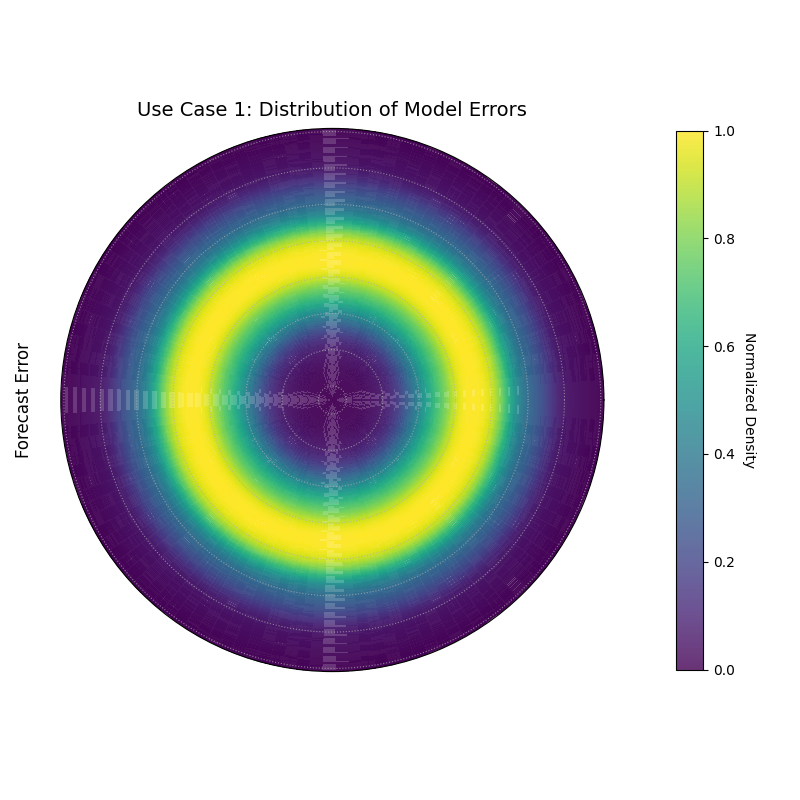
A density ring where the brightest color is not at the center (radius 0), indicating a biased error distribution.
Use Case 2: Distribution of Interval Width (``kind=’width’``)
A crucial aspect of a probabilistic forecast is its sharpness, which is measured by the prediction interval width. This plot can help us understand the characteristics of our model’s uncertainty estimates. Are they consistent, or do they vary wildly?
Let’s visualize the distribution of the interval width calculated from our simulated forecast’s 10th and 90th percentiles.
 1# --- 1. Data Generation (uses df_test from previous step) ---
 2
 3# --- 2. Plotting ---
 4kd.plot_radial_density_ring(
 5    df=df_test,
 6    kind="width",
 7    target_cols=["q10", "q90"],
 8    title="Use Case 2: Distribution of Interval Width",
 9    cmap="magma",
10    r_label="Interval Width (q90 - q10)",
11    savefig="gallery/images/gallery_plot_density_ring_width.png"
12)
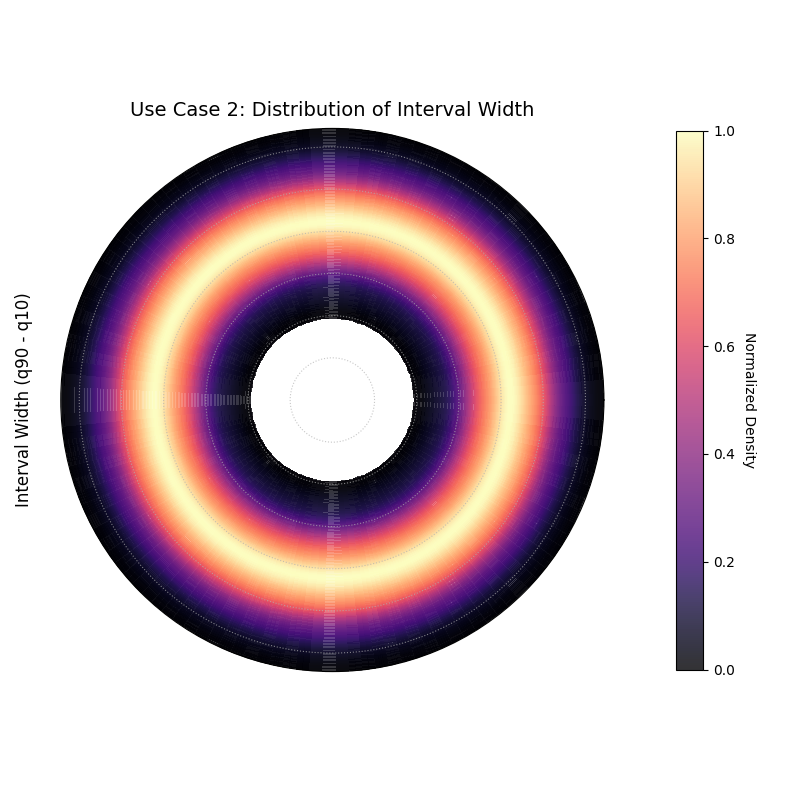
A density ring showing that the most common interval width is approximately 22 units.
Use Case 3: Distribution of Change (``kind=’velocity’``)
This mode is perfect for analyzing the distribution of change between two time points or a “velocity.” This is invaluable for understanding the dynamics of a system. Is change typically small and centered around zero, or are large shifts common?
Let’s analyze the year-over-year change in our simulated gamma-distributed values from 2022 to 2023.
 1# --- 1. Data Generation (uses df_test from previous step) ---
 2
 3# --- 2. Plotting ---
 4kd.plot_radial_density_ring(
 5    df=df_test,
 6    kind="velocity",
 7    target_cols=["value_2022", "value_2023"],
 8    title="Use Case 3: Distribution of Year-over-Year Change",
 9    cmap="inferno",
10    r_label="Change (value_2023 - value_2022)",
11    savefig="gallery/images/gallery_plot_density_ring_velocity.png"
12)
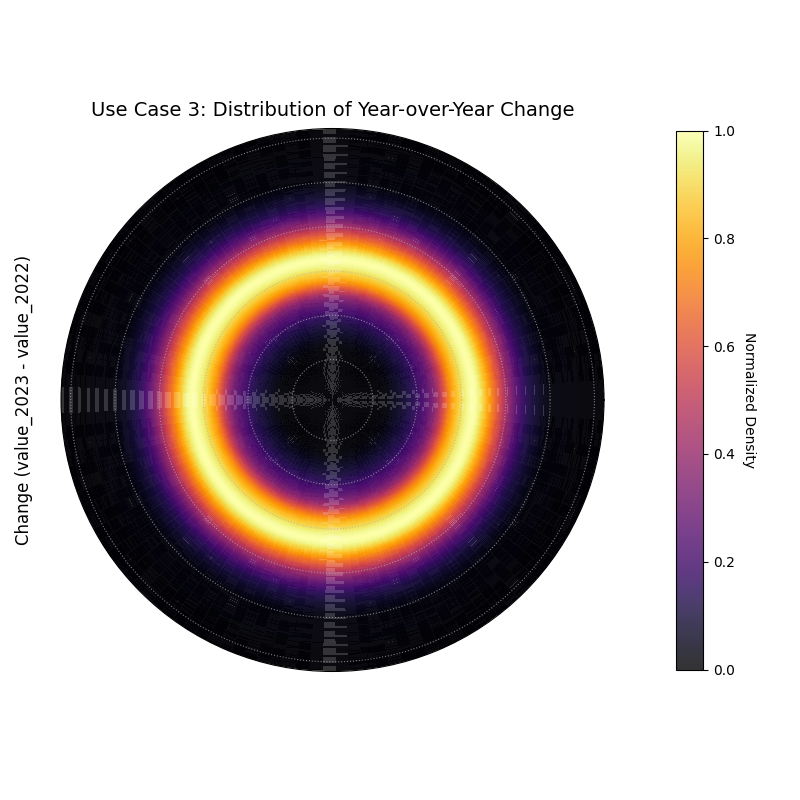
A density ring showing that the most common year-over-year change was a positive increase of about 5 units.
Use Case 4: Comparing Conditional Distributions
A truly usefull application of this plot is to move beyond analyzing a single dataset and instead compare the distributions of a metric under two different conditions. By creating a side-by-side plot, we can visually diagnose how the fundamental shape of a distribution changes in response to different circumstances, a common task in A/B testing or conditional analysis.
Best Practice
While plot_radial_density_ring is designed to create a single
plot, you can easily combine multiple plots into a single figure for
comparison by first creating your own Matplotlib figure and axes, and
then passing the individual ax objects to the function.
Let’s investigate a critical business problem for a logistics company: quantifying the impact of adverse weather on package delivery times.
Practical Example
A logistics company needs to set realistic delivery expectations for its customers. They know that storms cause delays, but they need to quantify this impact precisely. The goal is to compare the distribution of delivery times on “Clear Days” versus “Stormy Days”. This will help them understand not only the average delay caused by storms but also how much more unpredictable the delivery times become.
We will create two radial density rings and display them side-by-side for a direct visual comparison of the two weather conditions.
 1# --- 1. Data Generation: Delivery Times under Two Conditions ---
 2np.random.seed(1)
 3n_clear = 1000
 4n_stormy = 500
 5# On clear days, delivery times are predictable
 6clear_days_delivery_time = np.random.normal(loc=3, scale=0.5, size=n_clear)
 7# On stormy days, deliveries are delayed and more variable
 8stormy_days_delivery_time = np.random.normal(loc=5, scale=1.5, size=n_stormy)
 9
10df_clear = pd.DataFrame({'delivery_time_days': clear_days_delivery_time})
11df_stormy = pd.DataFrame({'delivery_time_days': stormy_days_delivery_time})
12
13# --- 2. Create a figure with two polar subplots ---
14fig, (ax1, ax2) = plt.subplots(1, 2, figsize=(16, 8),
15                             subplot_kw={'projection': 'polar'})
16
17# --- 3. Plot each distribution on its dedicated axis ---
18kd.plot_radial_density_ring(
19    df=df_clear,
20    ax=ax1, # Pass the first axes object
21    kind="direct",
22    target_cols="delivery_time_days",
23    title="Delivery Time Distribution (Clear Days)",
24    r_label="Delivery Time (Days)",
25    cmap="Greens"
26)
27
28kd.plot_radial_density_ring(
29    df=df_stormy,
30    ax=ax2, # Pass the second axes object
31    kind="direct",
32    target_cols="delivery_time_days",
33    title="Delivery Time Distribution (Stormy Days)",
34    r_label="Delivery Time (Days)",
35    cmap="Reds"
36)
37
38fig.suptitle('Use Case 4: Comparing Conditional Distributions', fontsize=16)
39kd.savefig("gallery/images/gallery_plot_density_ring_conditional.png")

Two density rings showing the distribution of delivery times. The left plot (Clear Days) shows a tight, narrow ring at a low radius. The right plot (Stormy Days) shows a wider, more diffuse ring at a higher radius.
For a deeper understanding of the statistical concepts behind probability distributions and Kernel Density Estimation, please refer back to the main Radial Density Ring (plot_radial_density_ring()) section.
Polar Heatmap
The plot_polar_heatmap() is a
tool for discovering “hot spots” and complex patterns in your data. It
creates a 2D density plot on a polar grid, showing the concentration
of data points based on two variables. It is especially effective for
visualizing the interaction between a cyclical feature (like time of
day) and a linear magnitude.
First, let’s break down how to read this intuitive map of your data’s density.
Plot Anatomy
Angle (θ): Represents the value of the
theta_col. This is typically a cyclical feature, like the hour of the day or month of the year. The plot wraps around seamlessly when atheta_periodis provided.Radius (r): Represents the value of the
r_col. This is typically a linear magnitude, like rainfall amount or error size, with lower values near the center and higher values at the edge.Color: Represents the density of data points (the
statistic, which is ‘count’ by default) within each polar bin. Bright, intense “hot” colors indicate a high concentration of data points in that specific angle-radius region.
With this in mind, let’s explore how to use this plot to find patterns in different real-world datasets.
Use Case 1: Identifying Temporal Hot Spots
The most common use for a polar heatmap is to find out when and at what magnitude events of interest are most likely to occur.
Let’s imagine a city’s public safety department wants to visualize the density of emergency calls. They need to know not only the busiest times of day, but also the typical number of calls during those peak times to ensure proper staffing.
 1import kdiagram as kd
 2import pandas as pd
 3import numpy as np
 4import matplotlib.pyplot as plt
 5
 6# --- 1. Data Generation: Emergency Call Data ---
 7np.random.seed(42)
 8n_incidents = 5000
 9# Incidents are concentrated during evening hours (e.g., 18:00 - 23:00)
10hour = np.random.normal(20, 2, n_incidents) % 24
11# Number of calls during an incident
12num_calls = np.random.gamma(shape=4, scale=2, size=n_incidents)
13
14df = pd.DataFrame({'hour_of_day': hour, 'call_volume': num_calls})
15
16# --- 2. Plotting ---
17kd.plot_polar_heatmap(
18    df=df,
19    r_col='call_volume',
20    theta_col='hour_of_day',
21    theta_period=24,
22    r_bins=15,
23    theta_bins=24,
24    cmap='hot',
25    title='Use Case 1: Density of Emergency Calls',
26    cbar_label='Number of Incidents'
27)

A polar heatmap showing the concentration of emergency calls. The brightest colors (the “hot spot”) indicate that the highest number of incidents occurs in the evening.
Use Case 2: Visualizing Model Error Interactions
A more advanced, diagnostic use case is to visualize the interaction between a model’s features and its prediction errors. This can help uncover conditional biases that are not visible in simple error plots.
Let’s analyze a temperature forecasting model. We hypothesize that the model’s prediction error is not random, but instead depends on both the time of day and the true temperature itself. Perhaps the model only makes large errors on hot afternoons.
 1# --- 1. Data Generation: Model Errors with Conditional Bias ---
 2np.random.seed(1)
 3n_points = 5000
 4# Simulate a full range of hours and temperatures
 5hour = np.random.uniform(0, 24, n_points)
 6true_temp = np.random.uniform(5, 35, n_points)
 7# Create an error that is largest only on hot afternoons
 8error = np.random.normal(0, 2, n_points)
 9hot_afternoon_mask = (hour > 13) & (hour < 18) & (true_temp > 25)
10error[hot_afternoon_mask] += np.random.uniform(5, 15, np.sum(hot_afternoon_mask))
11
12df_error = pd.DataFrame({'hour': hour, 'temperature': true_temp, 'error': error})
13
14# --- 2. Plotting ---
15# We plot the density of ABSOLUTE errors to find the largest ones
16df_error['abs_error'] = np.abs(df_error['error'])
17kd.plot_polar_heatmap(
18    df=df_error,
19    r_col='abs_error',
20    theta_col='hour',
21    theta_period=24,
22    title='Use Case 2: Hot Spots in Temperature Forecast Error',
23    cmap='inferno',
24    cbar_label='Count of High-Error Events'
25)

A polar heatmap where the angle is the hour of the day and the radius is the absolute forecast error. The hot spot reveals when the largest errors occur.
See Also
This plot is closely related to the
plot_feature_interaction()
function. While this heatmap visualizes the density (count) of
data points, plot_feature_interaction visualizes the average
value of a third variable. Use this plot to find where your data is,
and use plot_feature_interaction to find what the average outcome is
in those locations.
For a deeper understanding of the statistical concepts behind 2D density estimation and interaction effects, please refer back to the main Feature Importance Visualization and 2D Density Analysis (plot_polar_heatmap()) sections.
Polar Quiver Plot
The plot_polar_quiver() function is a
unique tool for visualizing vector fields in a polar context. Some
phenomena are not just about static values, but about change,
flow, or error, which have both magnitude and direction. This
plot represents each data point not as a dot, but as an arrow, making
it ideal for bringing these dynamic processes to life.
Let’s begin by dissecting the components of this vector visualization.
Plot Anatomy
Arrow Position (Origin): The base (tail) of each arrow is positioned at a specific polar coordinate \((r, \theta)\) determined by the
r_colandtheta_colvalues.Arrow Direction & Length: The arrow’s orientation and length are determined by its vector components. The
u_coldefines the radial component (change along the radius), and thev_coldefines the tangential component (change along the azimuth).Color: The color of each arrow provides an additional layer of information. By default, it represents the total magnitude of the vector, but it can be mapped to any other variable using the
color_colparameter.
With this in mind, let’s explore how this plot can be used to analyze different kinds of dynamic data.
Use Case 1: Visualizing Forecast Revisions
A common task in operational forecasting is to track how predictions for a specific future event change over time as new information becomes available. A quiver plot is an excellent tool for visualizing these revisions.
Let’s simulate a scenario where we have an initial forecast for a value at different locations, and then a subsequent update. The quiver plot will show us the direction and magnitude of the change between the two forecasts.
 1import kdiagram as kd
 2import pandas as pd
 3import numpy as np
 4import matplotlib.pyplot as plt
 5
 6# --- 1. Data Generation: Forecast Revisions ---
 7np.random.seed(0)
 8n_points = 50
 9locations = np.linspace(0, 360, n_points, endpoint=False)
10# An initial forecast with some spatial pattern
11initial_forecast = 10 + 5 * np.sin(np.deg2rad(locations) * 3)
12# Simulate revisions (the "update" vector)
13radial_change = np.random.normal(0, 1.5, n_points)
14tangential_change = np.random.normal(0, 0.1, n_points)
15
16df_forecasts = pd.DataFrame({
17    'location_angle': locations,
18    'initial_value': initial_forecast,
19    'update_radial': radial_change,
20    'update_tangential': tangential_change,
21})
22
23# --- 2. Plotting ---
24kd.plot_polar_quiver(
25    df=df_forecasts,
26    r_col='initial_value',
27    theta_col='location_angle',
28    u_col='update_radial',
29    v_col='update_tangential',
30    theta_period=360,
31    title='Use Case 1: Forecast Revisions for Spatial Locations',
32    cmap='coolwarm',
33    scale=30 # Adjusts arrow size for better visibility
34)
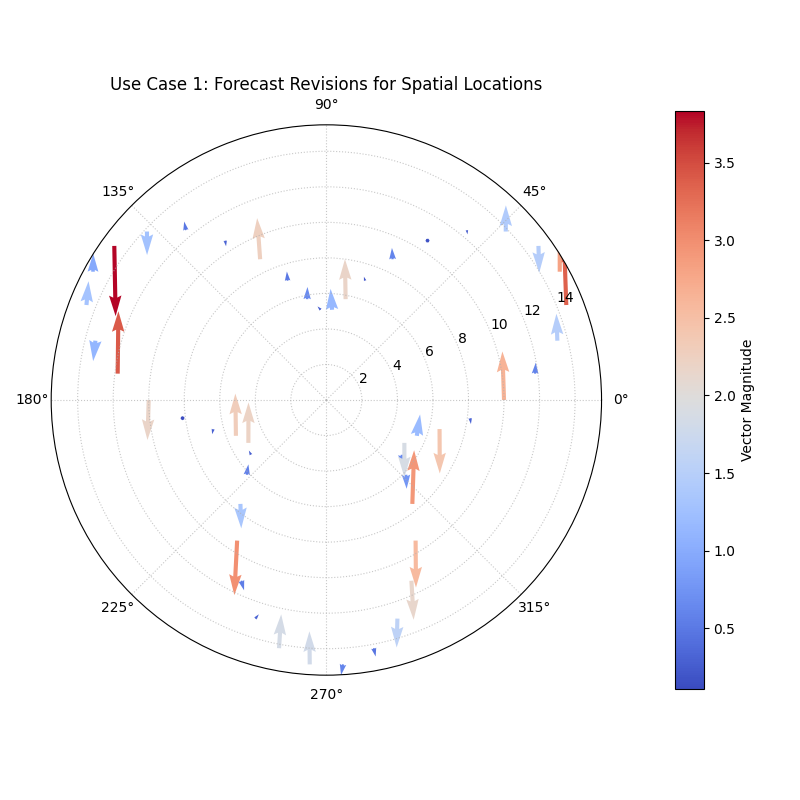
Arrows originating from an initial forecast value, showing the direction and magnitude of the update.
Use Case 2: Mapping a 2D Error Vector Field
Another interesting application is to visualize a model’s error not as a single number, but as a two-dimensional vector. This is common in spatial forecasting, where an error has both a distance component and a directional component.
Imagine a model that predicts the landing location of a weather balloon. The error for each prediction can be described by how many kilometers it was off (radial error) and by which direction it missed (tangential error).
 1# --- 1. Data Generation: 2D Spatial Errors ---
 2np.random.seed(42)
 3n_landings = 60
 4# The true landing locations
 5true_r = np.random.uniform(20, 80, n_landings)
 6true_theta_deg = np.linspace(0, 360, n_landings, endpoint=False)
 7# Simulate a model that has a systematic drift (e.g., always misses to the "north-east")
 8radial_error = np.random.normal(2, 2, n_landings)
 9tangential_error = np.random.normal(5, 2, n_landings)
10
11df_landings = pd.DataFrame({
12    'true_dist_km': true_r,
13    'true_angle_deg': true_theta_deg,
14    'error_radial_km': radial_error,
15    'error_tangential_km': tangential_error
16})
17
18# --- 2. Plotting the Error Field ---
19kd.plot_polar_quiver(
20    df=df_landings,
21    r_col='true_dist_km',
22    theta_col='true_angle_deg',
23    u_col='error_radial_km',
24    v_col='error_tangential_km',
25    theta_period=360,
26    title='Use Case 2: Weather Balloon Landing Error Field',
27    cmap='viridis',
28    scale=150
29)
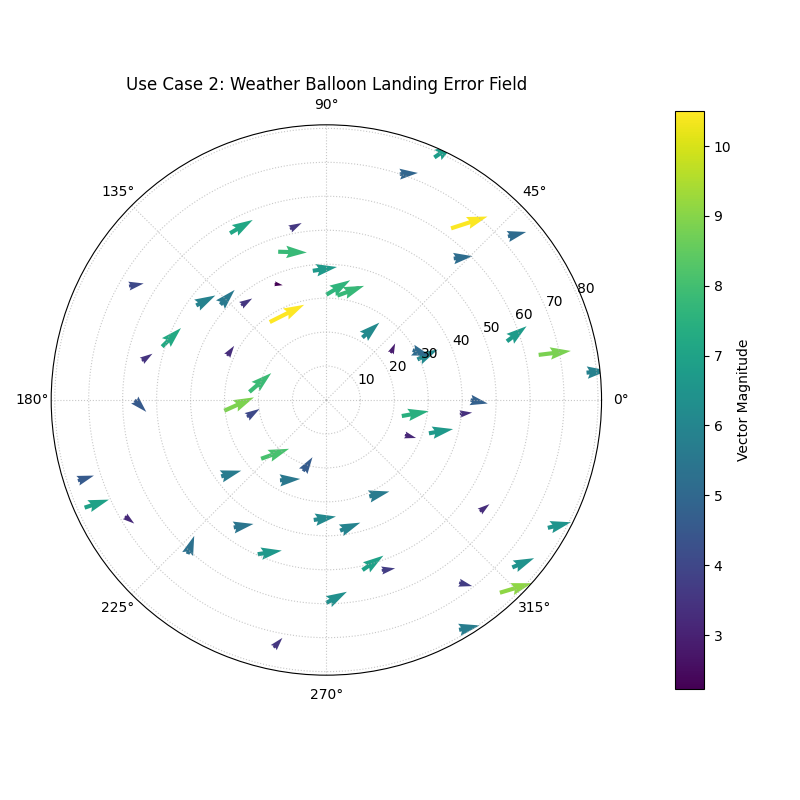
Arrows originating from the true locations, all pointing in a similar direction, revealing a systematic error in the forecast.
Use Case 3: Comparing Dynamic States with Subplots
One of the most applications of a quiver plot is to compare two different vector fields side-by-side to understand how a dynamic system changes over time or under different conditions. By creating a figure with multiple subplots and passing the individual axes (ax) to the function, we can create a direct and compelling comparative visualization.
Best Practice
For comparative analysis of vector fields, creating a multi-panel
figure with matplotlib.pyplot.subplots and then passing each
ax object to plot_polar_quiver is the recommended workflow.
This gives you full control over the layout and allows for direct,
side-by-side comparisons.
Let’s tackle a classic oceanography problem: comparing ocean current patterns between summer and winter.
Practical Example
An oceanographer is studying a regional sea to understand how its circulation patterns change with the seasons. They have collected current velocity data from a network of buoys during both the summer and the winter. They need to visualize and compare these two vector fields to identify seasonal shifts in the direction and speed of the primary currents.
We will create a side-by-side quiver plot. The left panel will show the strong summer currents, and the right panel will show the weaker, more complex winter currents, allowing for an immediate visual assessment of the seasonal change.
 1# --- 1. Data Generation: Seasonal Ocean Currents ---
 2np.random.seed(1)
 3n_buoys = 75
 4# Buoy positions are the same for both seasons
 5r_pos = np.random.uniform(10, 50, n_buoys)
 6theta_pos_deg = np.linspace(0, 360, n_buoys, endpoint=False)
 7
 8# Summer: Strong, consistent counter-clockwise gyre
 9u_summer = np.random.normal(0, 0.1, n_buoys)
10v_summer = 2.0 + np.sin(np.deg2rad(theta_pos_deg)) * 0.5
11df_summer = pd.DataFrame({
12    'dist_km': r_pos, 'angle_deg': theta_pos_deg,
13    'u_rad': u_summer, 'v_tan': v_summer
14})
15
16# Winter: Weaker, less consistent flow
17u_winter = np.random.normal(0, 0.2, n_buoys)
18v_winter = 0.8 - np.sin(np.deg2rad(theta_pos_deg)) * 0.5 # Weaker, different pattern
19df_winter = pd.DataFrame({
20    'dist_km': r_pos, 'angle_deg': theta_pos_deg,
21    'u_rad': u_winter, 'v_tan': v_winter
22})
23
24# --- 2. Create a figure with two polar subplots ---
25fig, (ax1, ax2) = plt.subplots(1, 2, figsize=(18, 9),
26                             subplot_kw={'projection': 'polar'})
27
28# --- 3. Plot each season on its dedicated axis ---
29kd.plot_polar_quiver(
30    df=df_summer, ax=ax1, r_col='dist_km', theta_col='angle_deg',
31    u_col='u_rad', v_col='v_tan', theta_period=360,
32    title='Summer Current Field', cmap='plasma', scale=40
33)
34kd.plot_polar_quiver(
35    df=df_winter, ax=ax2, r_col='dist_km', theta_col='angle_deg',
36    u_col='u_rad', v_col='v_tan', theta_period=360,
37    title='Winter Current Field', cmap='cividis', scale=40
38)
39
40fig.suptitle('Use Case 3: Seasonal Comparison of Ocean Currents', fontsize=16)
41# fig.tight_layout(rect=[0, 0.03, 1, 0.95]) # handled by kd.savefig
42kd.savefig("gallery/images/gallery_polar_quiver_seasonal.png", close=True)
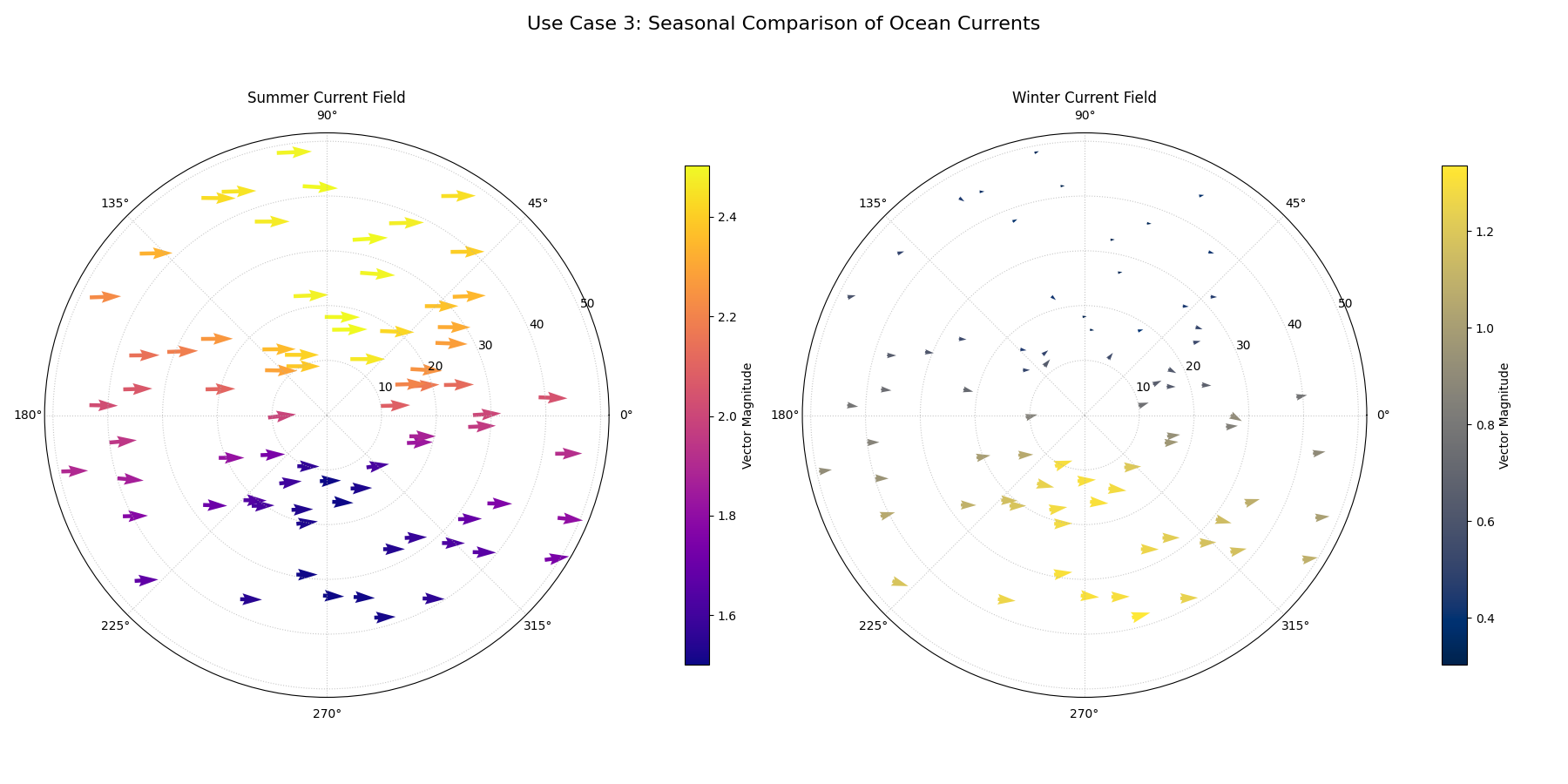
A two-panel figure showing a strong, bright, and coherent rotational current in the summer (left) and a weaker, darker, and less organized current in the winter (right).
For a deeper understanding of the mathematical concepts behind vector fields and their visualization, you may refer to the main Visualizing Vector Fields (plot_polar_quiver()) section.