Contents Menu Expand Light mode Dark mode Auto light/dark, in light mode Auto light/dark, in dark mode Skip to content
k-diagram v1.2.2
Logo
k-diagram v1.2.2

Documentation Contents:

  • Installation
  • Quick Start
  • Motivation and Background
  • User Guide
    • Visualizing Forecast Uncertainty
    • Visualizing Forecast Errors
    • Evaluating Probabilistic Forecasts
    • Model Comparison Visualization
    • Visualizing Relationships
    • Feature Importance Visualization
    • Evaluating Classification Models
    • Taylor Diagrams
    • Contextual Diagnostic Plots
    • Visualizing 1D Distributions
    • Forecast Utilities
    • Working with Quantile Data
    • Mathematical Utilities
    • Datasets
    • Case Study: Zhongshan Land Subsidence Uncertainty
  • Command-Line Interface (CLI)
    • Introduction - CLI
    • Context plots
    • Evaluation Plots
    • Comparison & Calibration
    • Taylor Diagram
    • Probabilistic Diagnostics
    • Uncertainty & Diagnostics
    • Relationship Commands
    • Error Diagnostics
    • Feature-Based Plots
  • Gallery
    • Uncertainty Visualizations
    • Error Visualizations
    • Probabilistic Diagnostics Gallery
    • Model Comparison Gallery
    • Relationship Visualization
    • Feature-Based Visualization Gallery
    • Model Evaluation Gallery
    • Taylor Diagrams
    • Contextual Diagnostic Plots
    • Histogram Gallery
  • API Reference
    • kdiagram.plot.uncertainty.plot_actual_vs_predicted
    • kdiagram.plot.uncertainty.plot_anomaly_magnitude
    • kdiagram.plot.uncertainty.plot_coverage
    • kdiagram.plot.uncertainty.plot_coverage_diagnostic
    • kdiagram.plot.uncertainty.plot_interval_consistency
    • kdiagram.plot.uncertainty.plot_interval_width
    • kdiagram.plot.uncertainty.plot_model_drift
    • kdiagram.plot.uncertainty.plot_temporal_uncertainty
    • kdiagram.plot.uncertainty.plot_uncertainty_drift
    • kdiagram.plot.uncertainty.plot_velocity
    • kdiagram.plot.uncertainty.plot_radial_density_ring
    • kdiagram.plot.uncertainty.plot_polar_heatmap
    • kdiagram.plot.uncertainty.plot_polar_quiver
    • kdiagram.plot.errors.plot_error_bands
    • kdiagram.plot.errors.plot_error_violins
    • kdiagram.plot.errors.plot_error_ellipses
    • kdiagram.plot.probabilistic.plot_pit_histogram
    • kdiagram.plot.probabilistic.plot_polar_sharpness
    • kdiagram.plot.probabilistic.plot_crps_comparison
    • kdiagram.plot.probabilistic.plot_credibility_bands
    • kdiagram.plot.probabilistic.plot_calibration_sharpness
    • kdiagram.plot.comparison.plot_model_comparison
    • kdiagram.plot.comparison.plot_reliability_diagram
    • kdiagram.plot.comparison.plot_polar_reliability
    • kdiagram.plot.comparison.plot_horizon_metrics
    • kdiagram.plot.relationship.plot_relationship
    • kdiagram.plot.relationship.plot_conditional_quantiles
    • kdiagram.plot.relationship.plot_error_relationship
    • kdiagram.plot.relationship.plot_residual_relationship
    • kdiagram.plot.feature_based.plot_feature_fingerprint
    • kdiagram.plot.feature_based.plot_feature_interaction
    • kdiagram.plot.context.plot_time_series
    • kdiagram.plot.context.plot_scatter_correlation
    • kdiagram.plot.context.plot_error_distribution
    • kdiagram.plot.context.plot_qq
    • kdiagram.plot.context.plot_error_autocorrelation
    • kdiagram.plot.context.plot_error_pacf
    • kdiagram.plot.evaluation.plot_polar_roc
    • kdiagram.plot.evaluation.plot_polar_pr_curve
    • kdiagram.plot.evaluation.plot_polar_confusion_matrix
    • kdiagram.plot.evaluation.plot_polar_confusion_matrix_in
    • kdiagram.plot.evaluation.plot_polar_classification_report
    • kdiagram.plot.evaluation.plot_pinball_loss
    • kdiagram.plot.evaluation.plot_regression_performance
    • kdiagram.plot.taylor_diagram.taylor_diagram
    • kdiagram.plot.taylor_diagram.plot_taylor_diagram_in
    • kdiagram.plot.taylor_diagram.plot_taylor_diagram
    • kdiagram.utils.bin_by_feature
    • kdiagram.utils.build_cdf_interpolator
    • kdiagram.utils.build_q_column_names
    • kdiagram.utils.calculate_calibration_error
    • kdiagram.utils.calculate_probabilistic_scores
    • kdiagram.utils.compute_coverage_score
    • kdiagram.utils.compute_crps
    • kdiagram.utils.compute_forecast_errors
    • kdiagram.utils.compute_interval_width
    • kdiagram.utils.compute_pinball_loss
    • kdiagram.utils.compute_pit
    • kdiagram.utils.compute_winkler_score
    • kdiagram.utils.detect_quantiles_in
    • kdiagram.utils.get_forecast_arrays
    • kdiagram.utils.melt_q_data
    • kdiagram.utils.minmax_scaler
    • kdiagram.utils.pivot_forecasts_long
    • kdiagram.utils.pivot_q_data
    • kdiagram.utils.plot_hist_kde
    • kdiagram.utils.reshape_quantile_data
    • kdiagram.datasets.load_uncertainty_data
    • kdiagram.datasets.load_zhongshan_subsidence
    • kdiagram.datasets.make_cyclical_data
    • kdiagram.datasets.make_fingerprint_data
    • kdiagram.datasets.make_multi_model_quantile_data
    • kdiagram.datasets.make_regression_data
    • kdiagram.datasets.make_classification_data
    • kdiagram.datasets.make_taylor_data
    • kdiagram.datasets.make_uncertainty_data
  • Contributing
  • Code of Conduct
  • Citing k-diagram
  • Release Notes
    • Version 1.2.2
    • Version 1.2.0
    • Version 1.1.0
    • Version 1.0.3
    • Version 1.0.0
  • License
  • Glossary
  • References
Back to top
View this page
Edit this page

Probabilistic Diagnostics Gallery

This gallery page showcases plots from k-diagram designed for the comprehensive evaluation of probabilistic forecasts. These visualizations move beyond simple interval checks to assess the two key qualities of a probabilistic forecast: calibration (is the forecast reliable?) and sharpness (is the forecast precise?).

The plots provide intuitive diagnostics for PIT histograms, forecast sharpness, overall performance (CRPS), and conditional uncertainty, allowing for a deeper understanding of a model’s predictive distributions.

Note

You need to run the code snippets locally to generate the plot images referenced below. Ensure the image paths in the .. image:: directives match where you save the plots.

PIT Histogram (Calibration)

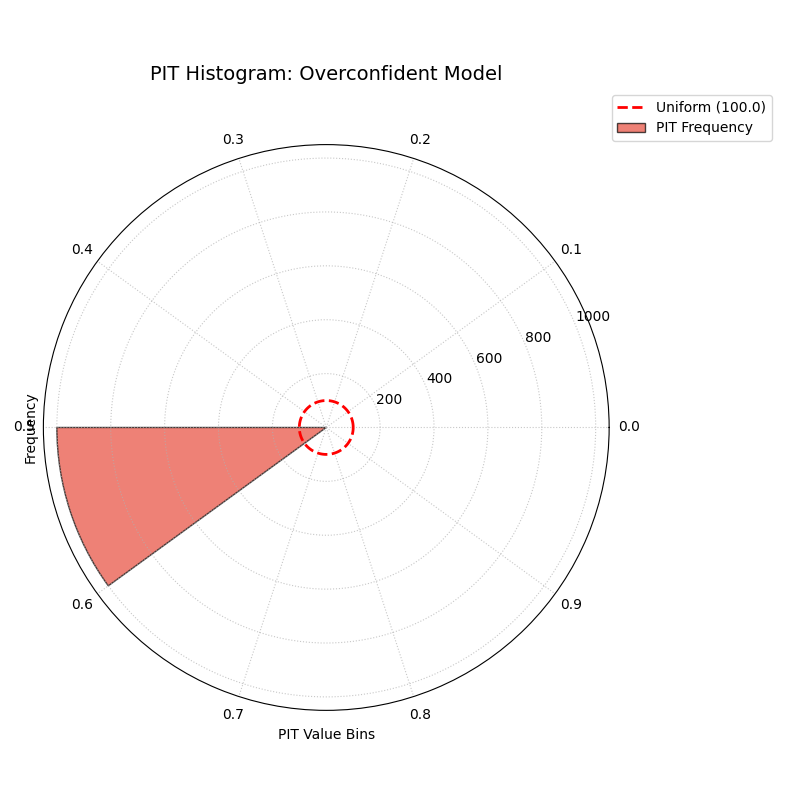
Assesses the calibration of a probabilistic forecast using a Polar Probability Integral Transform (PIT) histogram. For a perfectly calibrated model, the histogram should be uniform, resulting in a plot where the bars form a perfect circle.

 1import kdiagram as kd
 2import pandas as pd
 3import numpy as np
 4from scipy.stats import norm
 5import matplotlib.pyplot as plt
 6
 7# --- Data Generation ---
 8
 9np.random.seed(42)
10n_samples = 1000
11y_true = np.random.normal(loc=10, scale=5, size=n_samples)
12quantiles = np.linspace(0.05, 0.95, 19)  # 19 quantiles from 5% to 95%
13
14# Model 1: Good model (well-calibrated)
15good_model_preds = norm.ppf(quantiles, loc=y_true[:, np.newaxis], scale=5)
16
17# Model 2: Overconfident model (too sharp, poorly calibrated)
18overconfident_preds = norm.ppf(quantiles, loc=y_true[:, np.newaxis], scale=2.5)
19
20# --- Plotting ---
21kd.plot_pit_histogram(
22    y_true, good_model_preds, quantiles,
23    title="PIT Histogram: Good Model",
24    savefig="gallery/images/gallery_pit_histogram_good_model.png",
25)
26
27kd.plot_pit_histogram(
28    y_true, overconfident_preds, quantiles,
29    title="PIT Histogram: Overconfident Model",
30    color="#E74C3C",
31    savefig="gallery/images/gallery_pit_histogram_overconfident.png",
32)
33
34plt.close('all')
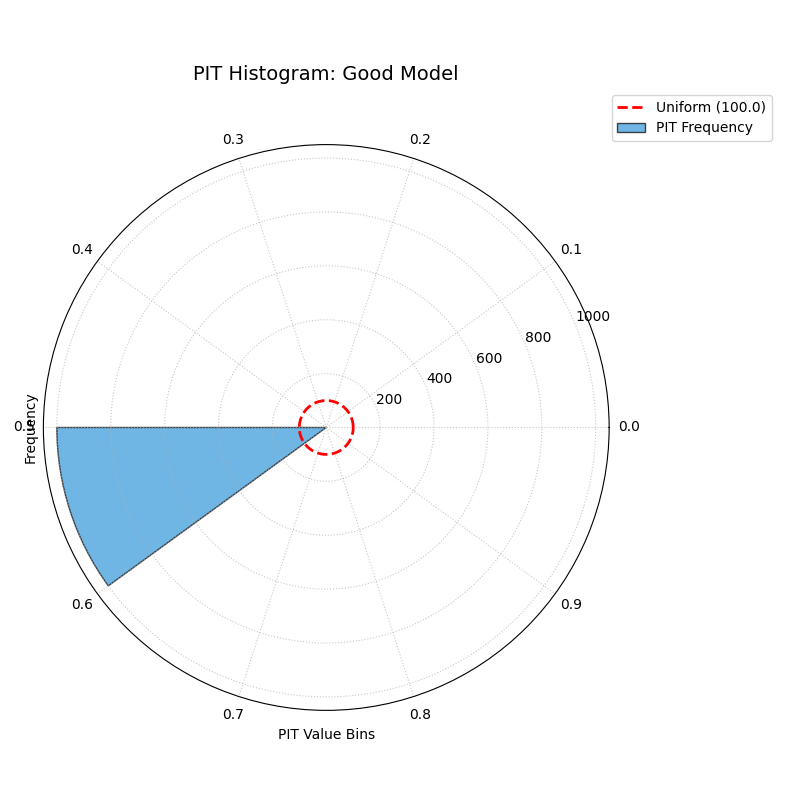
PIT Histogram for a well-calibrated model
PIT Histogram for an overconfident model

🧠 Analysis and Interpretation

The Polar PIT Histogram is a fundamental diagnostic for assessing the statistical calibration of a probabilistic forecast.

Key Features:

  • Angle (θ): The angular axis is divided into bins representing the PIT values, typically from 0 to 1.

  • Radius (r): The radius of each bar shows the frequency (count) of PIT values that fall into that bin.

  • Uniform Line (Red Dashed Circle): This reference line shows the expected frequency for a perfectly calibrated forecast, where all bins would have the same count.

🔍 In these Examples:

  • Good Model (Left): The blue bars are all very close to the red reference circle, indicating that the PIT values are uniformly distributed. This is the signature of a well-calibrated forecast.

  • Overconfident Model (Right): The histogram is U-shaped, with high frequencies in the lowest and highest PIT bins. This means the true observed values frequently fall outside the predicted range, a classic sign that the model’s forecast distributions are too narrow and overconfident.

💡 When to Use:

  • To get a detailed, visual assessment of a model’s probabilistic calibration.

  • To diagnose specific types of miscalibration (e.g., U-shaped for overconfidence, hump-shaped for underconfidence, or sloped for bias).

  • To compare the calibration of different models before looking at other metrics like sharpness.


Polar Sharpness Diagram

Assesses the sharpness (or precision) of one or more probabilistic forecasts. A sharper forecast has narrower prediction intervals and is represented by a point closer to the center of the plot.

 1import kdiagram as kd
 2import pandas as pd
 3import numpy as np
 4from scipy.stats import norm
 5import matplotlib.pyplot as plt
 6
 7# --- Data Generation (using the same data as before) ---
 8
 9np.random.seed(42)
10n_samples = 1000
11y_true = np.random.normal(loc=10, scale=5, size=n_samples)
12quantiles = np.linspace(0.05, 0.95, 19)
13
14# Model 1: Good model (well-calibrated, decent sharpness)
15good_model_preds = norm.ppf(quantiles, loc=y_true[:, np.newaxis], scale=5)
16
17# Model 2: Overconfident model (too sharp)
18overconfident_preds = norm.ppf(quantiles, loc=y_true[:, np.newaxis], scale=2.5)
19
20# Model 3: Underconfident model (not sharp)
21underconfident_preds = norm.ppf(quantiles, loc=y_true[:, np.newaxis] + 2, scale=8)
22
23model_names = ["Good Model", "Overconfident", "Underconfident"]
24
25# --- Plotting ---
26kd.plot_polar_sharpness(
27    good_model_preds, overconfident_preds, underconfident_preds,
28    quantiles=quantiles,
29    names=model_names,
30    savefig="gallery/images/gallery_forecast_sharpness_comparison.png",
31)
32plt.close()
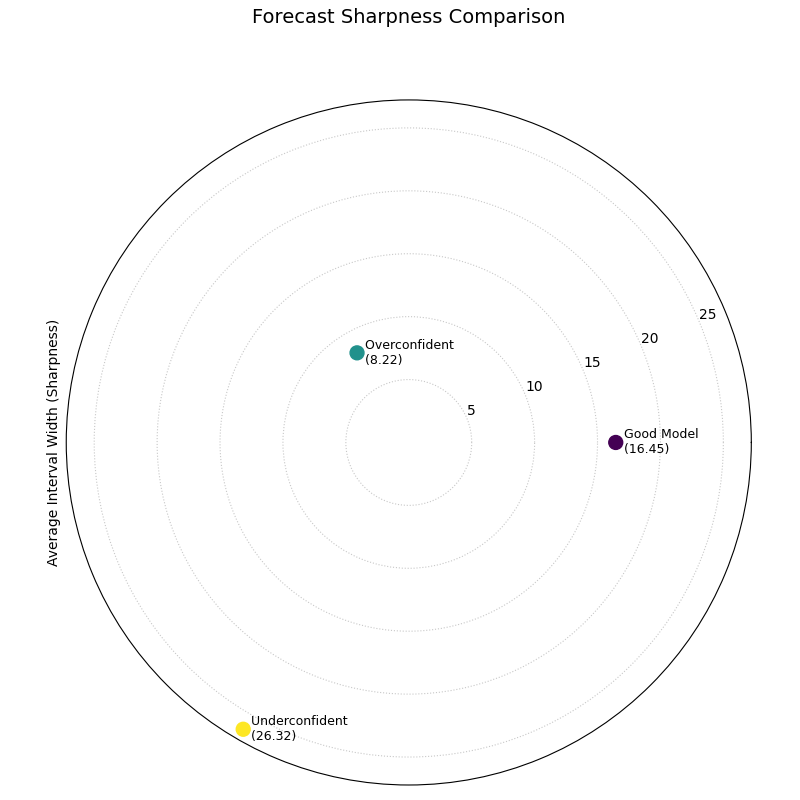
Polar Sharpness Diagram comparing three models

🧠 Analysis and Interpretation

The Polar Sharpness Diagram provides a direct comparison of the precision of different probabilistic models. While calibration (reliability) is crucial, a good forecast should also be as sharp (narrow) as possible.

Key Features:

  • Angle (θ): Each model is assigned its own angular sector for clear separation. The angle itself has no numerical meaning.

  • Radius (r): The radial distance from the center directly corresponds to the average prediction interval width. A smaller radius is better, indicating a sharper, more precise forecast.

🔍 In this Example:

  • Overconfident Model (Teal): This model is closest to the center with a sharpness score of 8.22. This means it produces the narrowest (sharpest) prediction intervals. However, as we saw in the PIT histogram, this sharpness comes at the cost of poor calibration.

  • Good Model (Purple): This model has a moderate sharpness score of 16.45. Its intervals are wider than the overconfident model but are well-calibrated.

  • Underconfident Model (Yellow): This model is farthest from the center with a score of 26.32, indicating it produces very wide (unsharp) prediction intervals.

💡 When to Use:

  • To directly compare the precision of multiple forecasting models.

  • To use in conjunction with a calibration plot (like the PIT histogram) to understand the trade-off between a model’s reliability and its sharpness.

  • To select a model that provides the best balance of sharpness and calibration for a specific application.


CRPS Comparison (Overall Score)

Provides a summary of overall probabilistic forecast performance using the Continuous Ranked Probability Score (CRPS). The CRPS is a proper scoring rule that assesses both calibration and sharpness simultaneously.

 1import kdiagram as kd
 2import pandas as pd
 3import numpy as np
 4from scipy.stats import norm
 5import matplotlib.pyplot as plt
 6
 7# --- Data Generation (using the same data as before) ---
 8
 9np.random.seed(42)
10n_samples = 1000
11y_true = np.random.normal(loc=10, scale=5, size=n_samples)
12quantiles = np.linspace(0.05, 0.95, 19)
13
14# Model 1: Good model (well-calibrated, decent sharpness)
15good_model_preds = norm.ppf(quantiles, loc=y_true[:, np.newaxis], scale=5)
16
17# Model 2: Overconfident model (too sharp, poorly calibrated)
18overconfident_preds = norm.ppf(quantiles, loc=y_true[:, np.newaxis], scale=2.5)
19
20# Model 3: Underconfident model (not sharp, poorly calibrated)
21underconfident_preds = norm.ppf(quantiles, loc=y_true[:, np.newaxis] + 2, scale=8)
22
23model_names = ["Good Model", "Overconfident", "Underconfident"]
24
25# --- Plotting ---
26kd.plot_crps_comparison(
27    y_true,
28    good_model_preds, overconfident_preds, underconfident_preds,
29    quantiles=quantiles,
30    names=model_names,
31    savefig="gallery/images/gallery_probabilistic_forecast_performance.png",
32)
33plt.close()
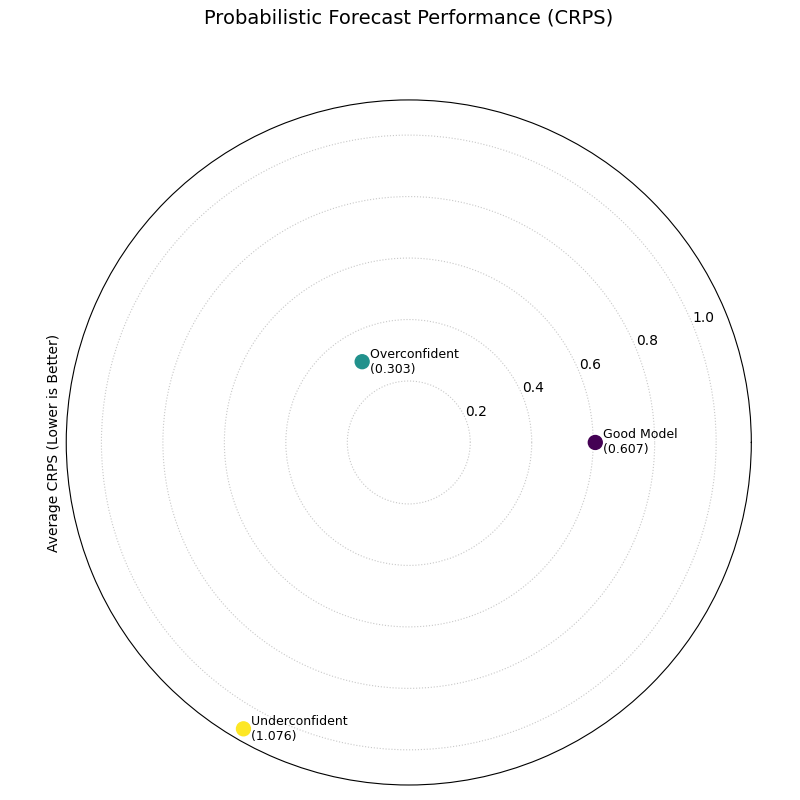
Polar CRPS Comparison Diagram

🧠 Analysis and Interpretation

The Polar CRPS Comparison Diagram provides a high-level summary of a model’s total probabilistic skill, combining both its calibration and sharpness into a single score.

Key Features:

  • Angle (θ): Each model is assigned its own angular sector for clear separation.

  • Radius (r): The radial distance from the center directly corresponds to the average CRPS. A smaller radius is better, indicating a more accurate and reliable probabilistic forecast.

🔍 In this Example:

  • Overconfident Model (Teal): This model has the lowest CRPS (0.303) and is closest to the center. While we know from the PIT histogram that it is poorly calibrated, its extreme sharpness (narrow intervals) results in a low error score in this case.

  • Good Model (Purple): This model has a higher CRPS (0.607). Although it is well-calibrated, its wider intervals (lower sharpness) lead to a slightly higher penalty than the overconfident model.

  • Underconfident Model (Yellow): This model has the highest CRPS (1.076) and is farthest from the center. It is penalized for both its lack of sharpness (very wide intervals) and its bias.

💡 When to Use:

  • To get a quick, high-level summary of which model performs best overall when considering both calibration and sharpness.

  • To use as a final comparison plot after using the PIT histogram and sharpness diagram to understand why the CRPS scores differ.

  • For model selection when a single, proper scoring rule is the primary decision criterion.


Polar Credibility Bands

Visualizes how the median forecast and the prediction interval bounds change as a function of another binned variable (e.g., month or hour). It is a descriptive tool for understanding the structure of a model’s predictions and its uncertainty.

 1import kdiagram as kd
 2import pandas as pd
 3import numpy as np
 4import matplotlib.pyplot as plt
 5
 6# --- Data Generation ---
 7
 8np.random.seed(0)
 9n_points = 500
10
11# Simulate a cyclical feature (month)
12month = np.random.randint(1, 13, n_points)
13
14# Forecast median follows a seasonal pattern
15median_forecast = 50 + 20 * np.sin((month - 3) * np.pi / 6)
16
17# Uncertainty (interval width) is also seasonal
18interval_width = 10 + 8 * np.cos(month * np.pi / 6) ** 2
19
20df_seasonal = pd.DataFrame({
21    'month': month,
22    'q50': median_forecast + np.random.randn(n_points) * 2,
23    'q10': median_forecast - interval_width / 2,
24    'q90': median_forecast + interval_width / 2,
25})
26
27# --- Plotting ---
28kd.plot_credibility_bands(
29    df=df_seasonal,
30    q_cols=('q10', 'q50', 'q90'),
31    theta_col='month',
32    theta_period=12,
33    theta_bins=12,
34    title="Seasonal Forecast Uncertainty",
35    color="magenta",
36    savefig="gallery/images/gallery_credibility_bands.png",
37)
38plt.close()
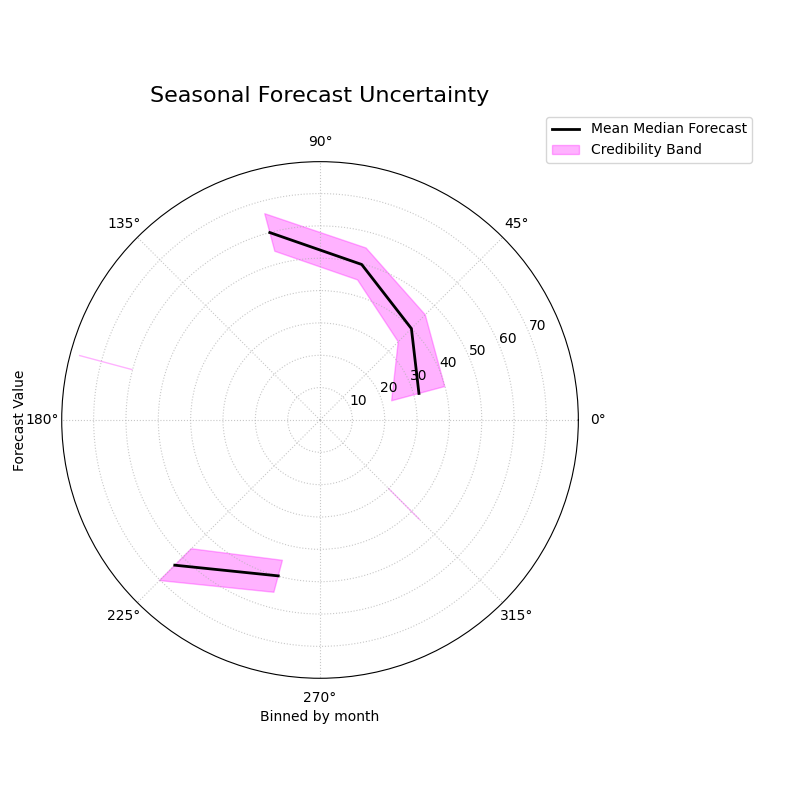
Polar Credibility Bands Plot

🧠 Analysis and Interpretation

The Polar Credibility Bands plot provides a clear view of how a model’s central tendency and uncertainty estimates behave conditionally on another feature.

Key Features:

  • Angle (θ): Represents the binned feature (in this case, the month).

  • Radius (r): Represents the value of the forecast.

  • Central Line (Black): Shows the mean of the median (Q50) forecast for each bin.

  • Shaded Band: The area between the mean of the lower and upper quantiles. The width of this band directly visualizes the average forecast sharpness for that bin.

🔍 In this Example:

  • Seasonal Trend: The central black line clearly follows a seasonal pattern, peaking in the spring/summer months (top-right) and reaching a minimum in the autumn/winter months (bottom-left).

  • Heteroscedasticity: The width of the magenta band is not constant. It is narrowest in the summer and widest in the winter, revealing that the model’s forecast uncertainty is heteroscedastic—it changes depending on the time of year.

💡 When to Use:

  • To diagnose if a model’s uncertainty changes predictably with another feature (e.g., time, or the magnitude of the forecast itself).

  • To visually inspect the conditional mean of a forecast.

  • To communicate how the forecast distribution is expected to behave under different conditions.


Calibration-Sharpness Diagram

Visualizes the fundamental trade-off between forecast calibration (reliability) and sharpness (precision) for multiple models. The ideal forecast is located at the center of the plot.

 1import kdiagram as kd
 2import pandas as pd
 3import numpy as np
 4from scipy.stats import norm
 5import matplotlib.pyplot as plt
 6
 7# --- Data Generation ---
 8
 9np.random.seed(42)
10n_samples = 1000
11y_true = np.random.normal(loc=10, scale=5, size=n_samples)
12quantiles = np.linspace(0.05, 0.95, 19)
13
14# Models with different trade-offs
15model_A = norm.ppf(quantiles, loc=y_true[:, np.newaxis], scale=5)
16model_B = norm.ppf(quantiles, loc=y_true[:, np.newaxis] - 2, scale=3)
17model_C = norm.ppf(quantiles, loc=y_true[:, np.newaxis], scale=8)
18model_names = ["Balanced", "Sharp/Biased", "Calibrated/Wide"]
19
20# --- Plotting ---
21kd.plot_calibration_sharpness(
22    y_true,
23    model_A, model_B, model_C,
24    quantiles=quantiles,
25    names=model_names,
26    cmap='plasma',
27    savefig="gallery/images/gallery_calibration_sharpness.png",
28)
29plt.close()
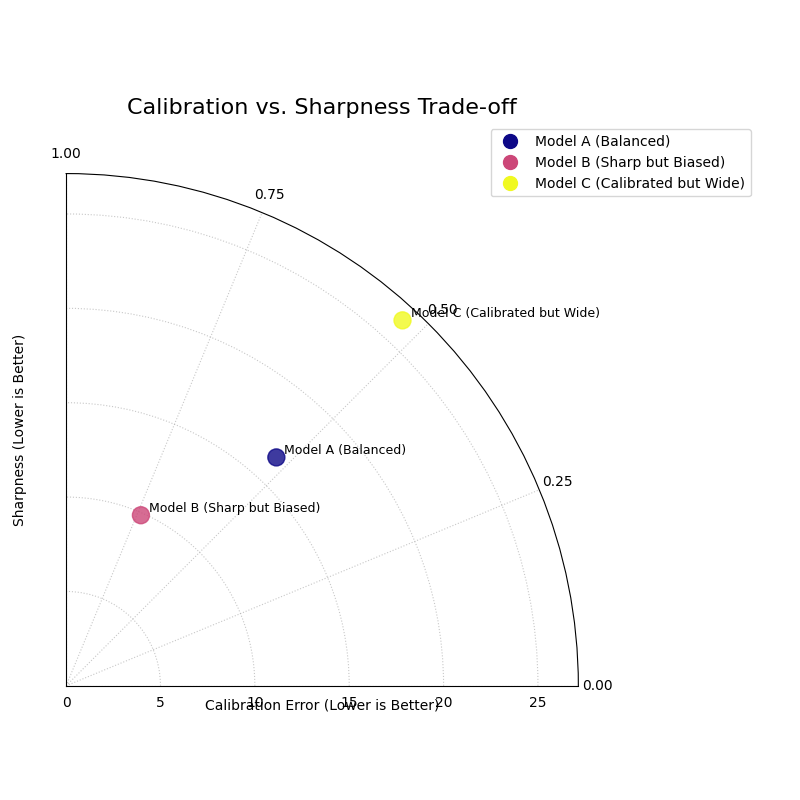
Calibration-Sharpness Diagram

🧠 Analysis and Interpretation

The Calibration-Sharpness Diagram provides a high-level summary of probabilistic forecast quality, plotting two key competing metrics on a single polar grid.

Key Features:

  • Angle (θ): Represents the calibration error. An angle of 0° indicates perfect calibration. The angle increases as the model becomes more miscalibrated.

  • Radius (r): Represents the sharpness (average interval width). A smaller radius is better (a sharper, more precise forecast).

  • Ideal Point: The center of the plot (0, 0) is the ideal location for a perfect forecast.

🔍 In this Example:

  • Model A (Balanced): This model is located relatively close to the center, showing a good balance between low calibration error (small angle) and decent sharpness (moderate radius).

  • Model B (Sharp/Biased): This model has the smallest radius, making it the sharpest. However, it has a large angle, indicating it is poorly calibrated. This is a classic overconfident model.

  • Model C (Calibrated/Wide): This model has a very small angle, meaning it is well-calibrated. However, it is far from the center, indicating poor sharpness (very wide intervals)—a classic underconfident model.

💡 When to Use:

  • To quickly compare the overall quality of multiple probabilistic models.

  • To visualize the trade-off between a model’s reliability and its precision.

  • For model selection, helping to choose a model that has the best balance of properties for a specific application.


Next
Model Comparison Gallery
Previous
Error Visualizations
Copyright © 2025, Laurent Kouadio
Made with Sphinx and @pradyunsg's Furo
On this page
  • Probabilistic Diagnostics Gallery
    • PIT Histogram (Calibration)
    • Polar Sharpness Diagram
    • CRPS Comparison (Overall Score)
    • Polar Credibility Bands
    • Calibration-Sharpness Diagram